
Click Shop
作者:rebot | 分类:模组
Minecraft 版本: 1.20 1.20.1 1.20.2 1.20.3 1.20.4 1.20.5 1.20.6 1.21 1.21.1 1.21.2 1.21.3 1.21.4 1.21.5 1.21.6 1.21.7 1.21.8 1.21.9 1.21.10 1.21.11 26.1 26.1.1 26.1.2 26.2
平台: bukkit paper purpur spigot
标签: decoration economy utility
WARNING: Version 1.0 is not compatible with version 0.1! Before updating: back up and remove the folder “plugins/ClickShop”. All shop data will be lost, so collect your earnings and remove all shops in advance.
What is ClickShop?
- ClickShop is a highly customizable and easy to use shop plugin, made primarily for SMP servers.
- TRAILER: https://www.youtube.com/watch?v=FcDirAUOClQ&ab_channel=Clickism

Features
- NEW in 1.0:
- Multi-language support: English & German
- Two new background themes: Mosaic & Checkerboard
- Custom shop names
- Add a sale text to your shop!
- Select different buy sounds
- Effortless usage with no commands.
- Custom product displays.
- Custom color themes
- Supports custom currencies.
- Ability to sell various products
- Be notified when your shop runs out of stock
How to use
Creating a shop
-
To create a shop, simply click on a chest or a barrel with a sign in your hand (any wood)

-
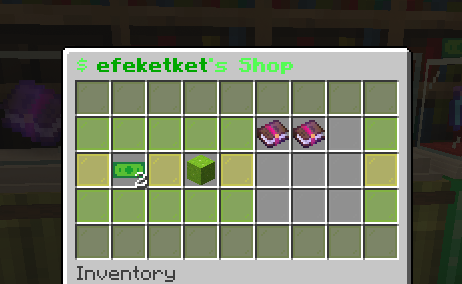
Then, put the price and products you want to sell into their areas, and click "Create Shop".

Controls:
- Left click with an item to place it.
- You can right click with an empty hand to half the amount of items.
- Right click with the same item to increase the amount by one.
Editing the shop
- After creating a shop, Right Click on your shop to access it.
- Here, you can customize your shop, change its settings and much more!
Stocking
- You can stock the shop's inner storage by clicking "Stock Chest" and putting the items in the inventory.


Stockpiles
- If you don't want to constantly top up the shop's inner storage, you can connect a stockpile
- To add a stockpile, click "Connect Stockpile" in the shop interface.

- Now walk around and click on a (double) chest or a barrel.

- Congrats! You connected a stockpile. Your shop will automatically sell items out of your stockpile(s).
Earnings piles
-
Similar to a stockpile, you can connect an earnings pile to multiple shops and collect all their earnings from a single spot.
-
To connect an earnings pile, click "Connect Earnings Pile" in the shop interface and click on an Ender Chest

-
To access the earning pile interface, you can Shift + Right click on the Ender Chest. (Without shifting, you can simply use it as an ender chest)
-
Alternatively, you can add shops to your earnings pile from this interface.
-
To do that, click "Connect Shop" and click on a valid shop to be able to collect earnings from it.

Collecting your earnings
- To collect your earnings from a single shop, open the shop interface and click on "Collect Earnings".
- To collect earnings from multiple shops at an earnings pile, Shift + Right click to access the earnings pile interface, there you can click on "Collect Earnings".

Changing price & products
-
To change the price and products you're selling at a shop after creating it, click on "Change Price and Products"

-
You can modify the price and products as you want and click "Save Changes to confirm it.

-
You can also delete your shop in this menu by clicking "Delete Shop"

-
You will then have to confirm again to delete your shop.

Shop Settings
-
You can adjust various settings through the menu "Settings".
-
Such as enabling/disabling buy notifications and stock warnings.


Customization
NEW: Custom Shop Name
-
You can now add a custom shop name to your shops!
-
Go to "Customize Shop" and click "Set Shop Name" and enter your shop name in chat.


Changing Background Theme & Buy Sound
-
To change the color theme of your shop, click "Customize Shop" from the main shop interface, click "Theme & Sound Settings" and choose on any color theme you want from the top row.


-
Click "Change Buy Sound" to change the shop's buy sound. This sound will be played to them when people buy from your shop.

Changing Shop Block
-
To change the shop block, click "Customize Shop" from the main shop interface and click on "Change Shop Block" with the block you want.


Glass Displays
-
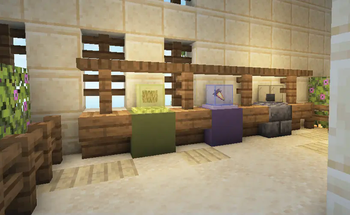
To add a glass display, click "Customize Shop" from the main shop interface and click "Build Glass Display"
-
You can click on "Change Glass" with a colored glass block in your hand to change the display glass color.
-
You can click on "Change Base" with a block in your hand to change the display base.
-
You can add/remove a backlight to your glass display by clicking "Add Light" or "Remove Light".


NEW: Sale Text
-
To add a sale text, first build a glass display then click "Add Sale Text" and enter your sale text in chat.

Frame displays
-
To add a frame display, click "Customize Shop" from the main shop interface, then:
-
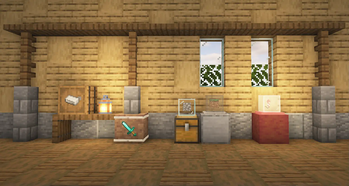
You can click on "Build Frame Display" to create a simple frame display.
-
The frame display will always be placed based on the direction you're facing.

-
You can click on "Add Frame" with a block in your hand to add a custom outer frame to the frame display.


NEW: Move To Top
-
-
You can now move your frame displays to the top!
-
Click "Move To Top" after building a frame display.


Remove All Displays
-
Lastly, to remove all displays, click "Customize Shop" from the main shop interface, and click on "Remove Display"
请登录后举报
请 登录 后赞助作者。
暂无评论,抢个沙发吧~