Language Translator
作者:rebot | 分类:模组
Minecraft 版本: 26.1 26.1.1 26.1.2
平台: fabric
标签: utility
Language Translator
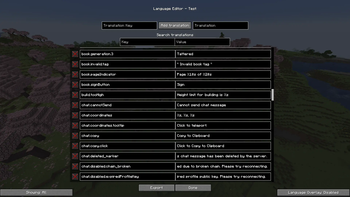
This mod lets you create and edit languages in game with an in-game menu.
Usage
To open the language list menu click the Language Editor keybind (default: N)
Creating languages
To create a language open the language editor menu, and click the "Create new language" button.
This will prompt you for the Code, Name, Region, and Description of the language, and whether it's an overlay language.
Code - The identifier for the language, using a format like en_us
Name - The name of the language, for example English
Region - The region of the language, for example United States
Description (optional) - The description of the language (shown when exported to a resource pack), for example: Language for English (United States)
The overlay language option:
- when set to "Create a new language", will create a new language in the options screen when the exported resource pack is enabled.
- when set to "Overlay a language" (default), will modify an existing language, so when the resource pack is enabled, you won't have to enable a different language to see the changes.
After you fill all of them out, click the Create button.
Editing languages
To edit languages, click the edit button for the language you created and want to edit.
Searching translations
To search for translation keys or values, type the strings you want to search for in the search boxes.
Adding translations
To add translations type the translation key and value and then click the add translation button. To remove translations click the X button on the left of keys, the button is enabled when there is a translation added to the key.
Tip: You can click the translations in the result list to automatically fill in the boxes for adding translations.
Viewing selectors
Selectors let you filter what category or mod of the translations you would want to see, for example: All, Finished, Unfinished, Captured, Minecraft, or any other mod/resource pack specific translations.
To change the selector click the button in the bottom left of the language editing menu.
"Captured" Selector
This selector shows all translation keys which were used (for the next frame) after pressing the "Capture translation keys" keybind (default: K).
For example when pressed on the main menu screen, the "Captured" selector will have the menu.options translation key, then when the keybind is pressed in some other place, it will replace the list with the new list of translation keys found in the next frame.
Overlay
An overlay will modify all the translations loaded by the game by the translations in the specific language you would want to enable the overlay for, to enable the overlay click the button in the bottom right of the language editing menu. Overlays have an advantage over resource packs that you can auto-reload them, and you don't have to reload all of the resource packs to see the changes.
You can use auto-reload with overlays by directly editing the language files used by this mod, in the game folder in the languages-eplt folder, the file would be named id.json, open it with a text editor and add translation entries to the translations json value. Use auto-reload if you know what you're doing
Viewing translation keys
You can view translation keys that the game uses by clicking M on your keyboard (default keybind).
By default, the game translates all translation keys, but this option allows you to view the translation keys, the options for this keybind are:
- View translated text (default)
- View translation keys and arguments (using colors from the original text)
- View translation keys and arguments (using a color palette), the color palette is as follows:
- aqua - A literal string marked as a Text/Component in code
- red - A translation key without a specified translation
- green - A translation key with a translation (this requires the overlay feature, green will only appear when the overlay language has this key set)
- pink - A literal string marked as a String in code
- gray - other symbols like
[](arguments for translations),<>(siblings of a text component), and,
The game should update all text where translations are used, so you will be able to see the difference in what each option does, after clicking the keybind a couple times.
Exporting languages
To export languages click the export button in the language editor menu, this will prompt you for the resource pack name, after you click the Export button you will have a resource pack with the specified name in your resource pack folder.
Enabling languages
To enable a language you exported, first enable the resource pack, and then enable the language in the vanilla language list.
Other Info
You can use this mod in modpacks.
请登录后举报
暂无评论,抢个沙发吧~