
Split Screen Create
作者:rebot | 分类:整合包
Minecraft 版本: 1.20.1
平台: fabric
标签: multiplayer optimization technology
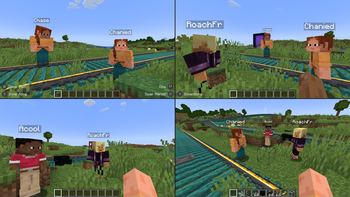
Overview
This modpack is designed for easy split-screen multiplayer. It focuses on the Create mod and its add-ons. This pack also includes various structure mods to encourage exploration.
The pack is playable with up to 4 players using controllers on a single (preferably large) screen. Optionally, one player can use the keyboard/mouse. For controller players, the mouse/keyboard can be swapped to focus on another window if a mod requires them.
Performance
Because of the way Minecraft handles running the server (Host World) and client (Other Players), this pack runs much faster (TPS/CPU) than 4 separate instances. It does, however, still take additional power from the GPU (FPS) to render 4 clients. Because of this, it is recommended to lower the resolution of the game since each window is reduced to a quarter of the original size.
How to use
Playing Together Use the **PrisimMC** (or **MultiMC**) launcher to import this pack from **Modrinth**. **PrisimMC** allows you to create separate instances (or multiple running copies) of Minecraft. You will need to download this pack for each instance that will be running. To play on an external server, either the server must disable online mode or each player must use a different Minecraft account. You can also install the **E4MC** mod, which makes LAN worlds joinable by anyone like a server. For local play, host a LAN server on the main instance of the pack. All of the other instances will need to join that local server. If you only have one account to use, you will need to use the **AuthMe** mod to enable **Offline Mode** for **both** online and local multiplayer. Click on the lock icon in the **Multiplayer** menu to enter **Offline** mode. If you enter the name of a Minecraft Account, their skin will be used.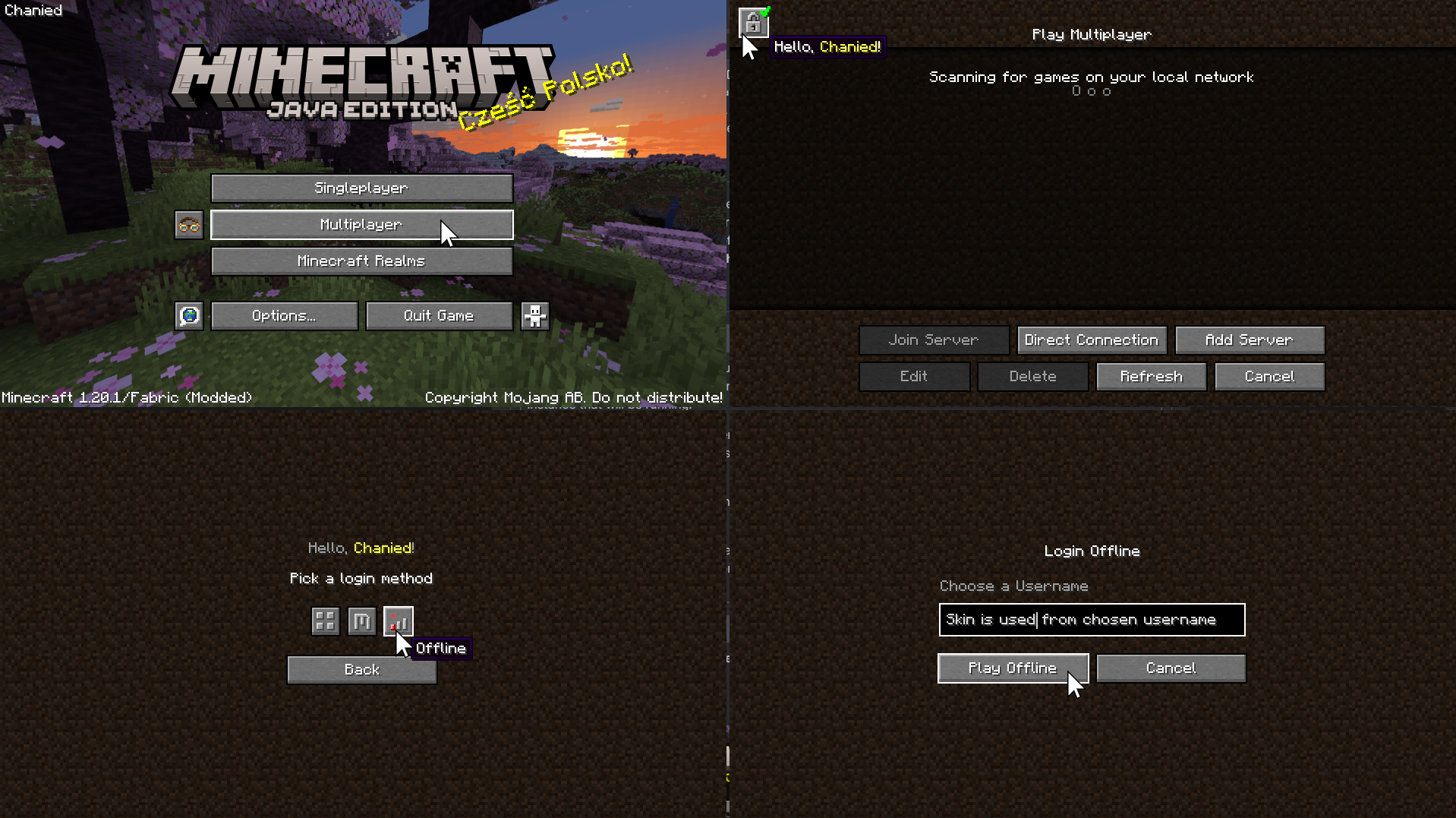 Using Splitscreen To put the windows into **Split Screen**, press **F11**. This cycles between different positions and sizes for each instance.
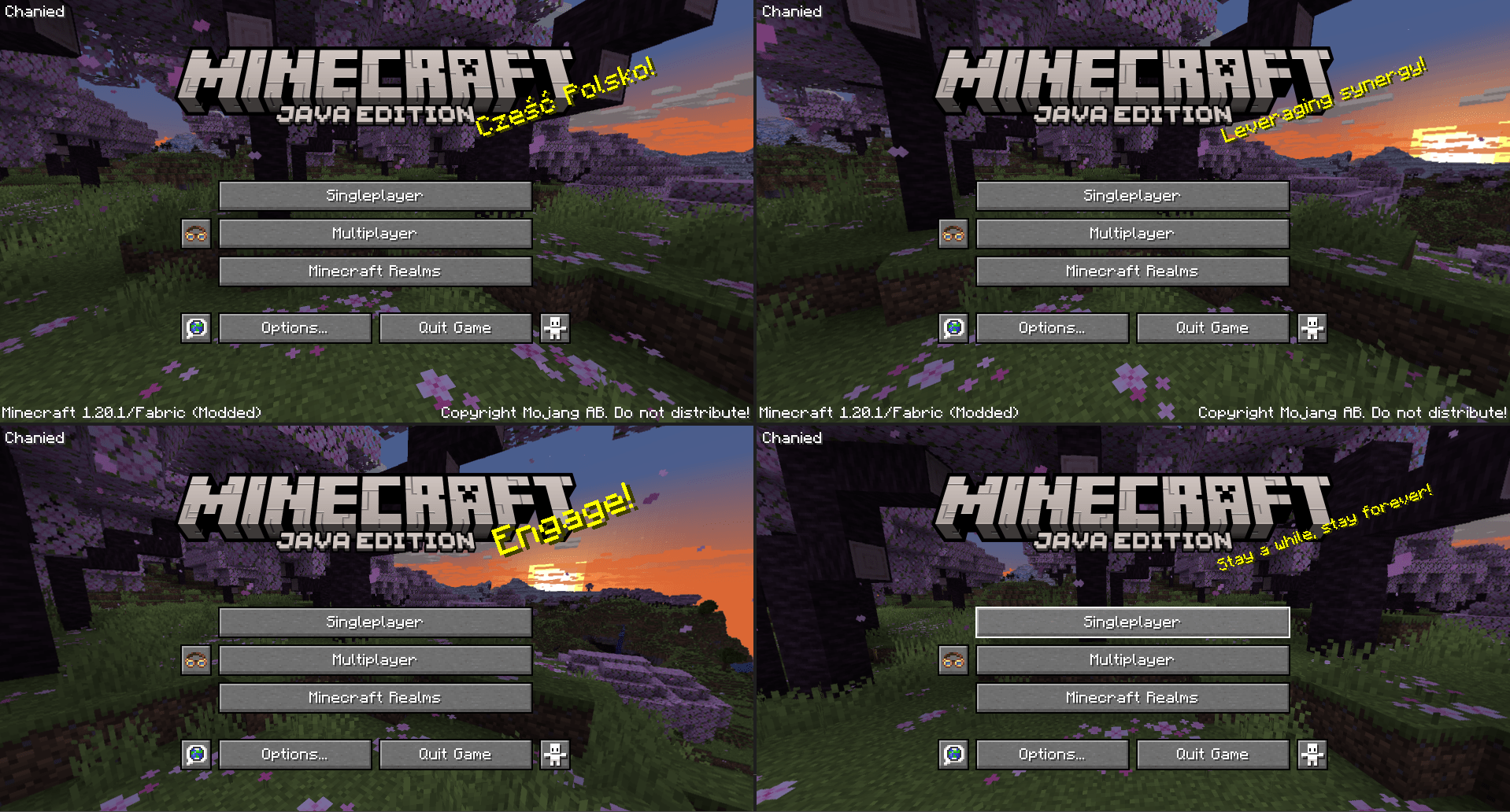 You may need to hide the taskbar to see the bottom of the screen. To prevent the escape menu from automatically appearing, press **F3+P** to disable **pauseOnLostFocus**. options.txt Instead of using the shortcut, you can run each instance once to generate the **options.txt** file. Open the modpack folder and edit **options.txt**. Change the value of **pauseOnLostFocus** from **true** to **false**.
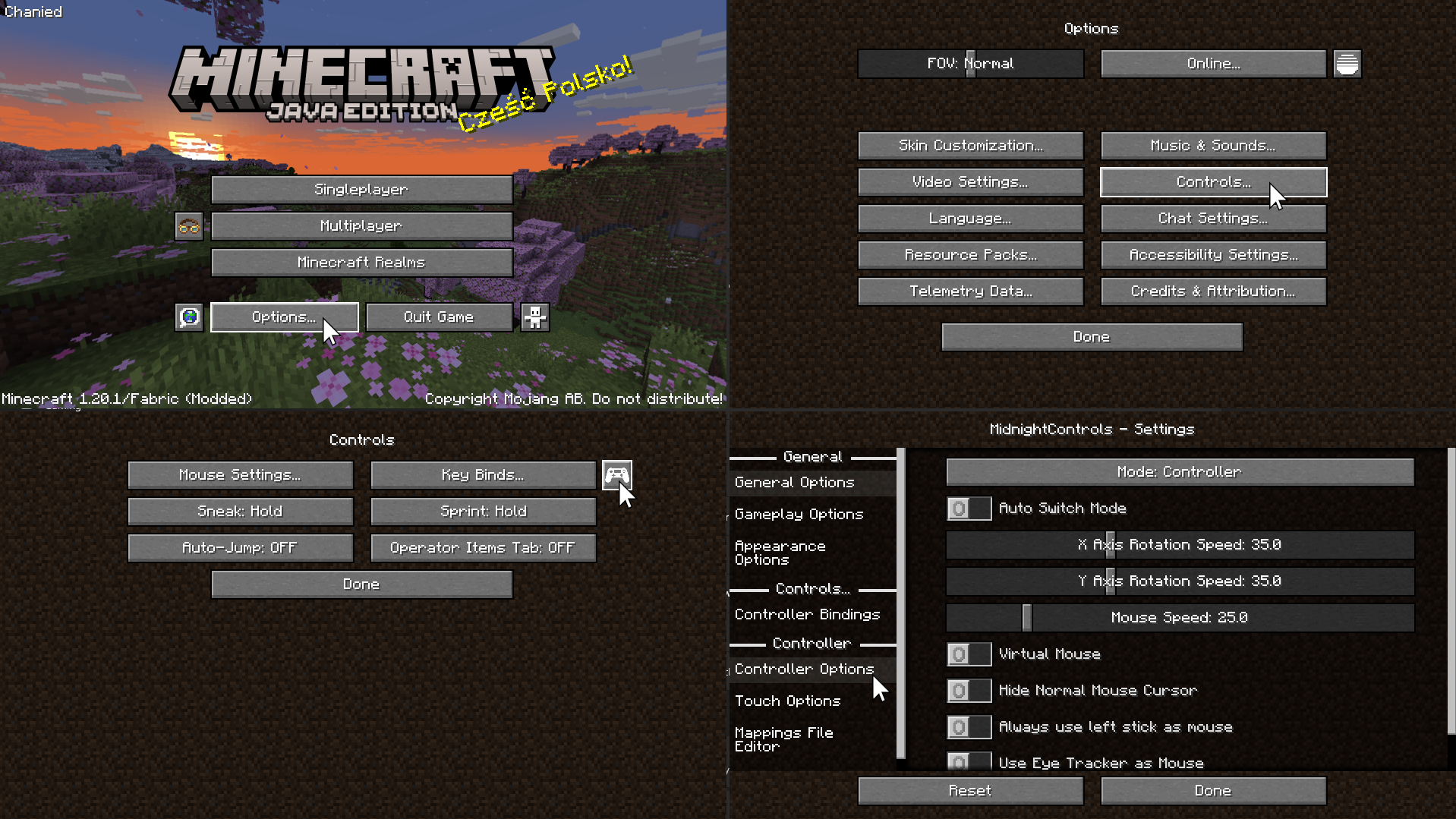
 Assigning Controls On the Minecraft menu, click **Options -> Controls ->** and the **Controller Icon** to enter the **Midnight Controls** menu. If that instance will be using a keyboard/mouse, turn off **Auto Switch Mode**. If that instance will be using a controller, turn on **Virtual Mouse**. Then, open **Controller Options** on the sidebar to enable unfocused input. If you only plan on playing with 1 controller, you can skip this step. We need to assign a controller to each instance of Minecraft. Switch the selected controller at the top of **Controller Options** to the controller for that instance.
 Advanced Controller Options For more controller options (such as mappings), you will need to download [GamepadTool](https://generalarcade.com/gamepadtool/). Copy your mapping code and paste it into the **Mappings File Editor** inside **Moonlight Controls** Other Guides [Midnight Controls Website](https://www.midnightdust.eu/wiki/midnightcontrols/) > GamepadTool\ > Midnight Controls Settings [mkordik1(Youtube)](https://www.youtube.com/watch?v=cVryRKruyQo) > options.txt\ > 1 controller only
请登录后举报
请 登录 后赞助作者。
暂无评论,抢个沙发吧~