
OPKONTOR
作者:rebot | 分类:模组
价格:0 墨喵币
下载量:0
点赞:0
版本 0.4.0
本资源为搬运资源,原资源地址:
https://modrinth.com/mod/opkontor
资源信息
Minecraft 版本: 1.21.11
平台: fabric
标签: economy
资源介绍
Please choose your language – Bitte wähle deine Sprache
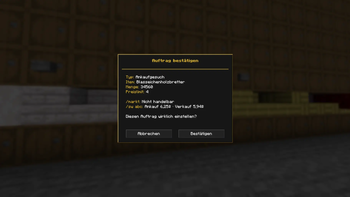
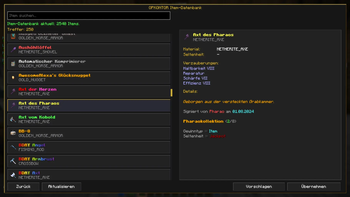
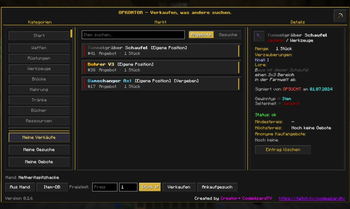
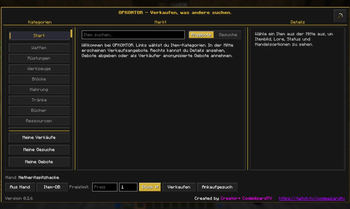
English**OPKONTOR - Sell what others are looking for.** *The client-side item trading network – exclusively for OPSUCHT.net* --- ## What is OPKONTOR? **OPKONTOR** revolutionizes item trading on OPSUCHT. Instead of selling your valuable items below value in chat or at the auction house, this purely **client-side mod** opens your personal, digital trading office. The concept is brilliantly simple: You take the item in your **hand**, open the office, and either set an asking price or let the buyer make a direct offer on a negotiable basis (OBO). No rigid auction houses, no ticking clocks – just direct, uncomplicated player-to-player trading. And it works both ways: Instead of only selling, you can also create **buy requests** and specifically search for items you want – the matching sellers then come to you with their offers. For this you access the built-in **item database** directly: It already contains many of the OPSUCHT custom items, keeps growing, is searchable, and delivers the item you want for your request with a single click. --- ## 🌐 Important: Exclusively for OPSUCHT.net > ⚠️ **OPKONTOR only works on the Minecraft server OPSUCHT.net** The mod activates solely while you are playing on OPSUCHT – on any other server as well as in singleplayer it stays inactive and does not connect to the trading network. The trading office is deliberately built as a pure OPSUCHT companion and cannot be used outside of this server. --- ## ✨ The most important features * 📥 **Direct hotbar import:** The mod reads the item you want to sell in seconds, straight from your active hotbar. * 🛒 **Sell AND search:** You don't just make offers – with **buy requests** you turn the tables: List *what you're looking for* and let the matching sellers come to you. * 🎭 **100% anonymous negotiations:** Absolute protection of your identity. Haggling is anonymous – only upon a successful deal is the trade sealed and the name of your trading partner shown. * 🤝 **Real negotiation with counteroffers:** A bid is just the beginning – for **sales and requests** alike. When one side counters, the price goes back and forth until both sides are satisfied. The deal can always be closed by whichever side currently has the offer in front of them to confirm – and at the price being negotiated right now. * 🚫 **Fair decline instead of delete:** If you don't like a bid as a lister, you *decline* it instead of removing it without a trace. The bidder is notified and can withdraw their bid or improve it with a new counteroffer. Declined bids no longer count as the highest or best bid. * 📜 **Flexible price system:** Set a guide price (OBO) or leave the price field completely open so buyers can make you a direct offer. * ⌨️ **Shorthand for large amounts:** In every price field, **`k`** stands for thousand and **`m`** for million – it expands to the full amount as you type (`5k` → `5000`, `1.5m` → `1500000`). No more counting zeros. * 💰 **Price orientation at a glance:** When viewing an item, OPKONTOR automatically shows current reference prices – the live market prices (**`/markt`**) as well as the ABC shop prices (**`/sw abc`**), each with buy and sell value. That way you immediately see whether an offer is fair, without having to scout the market first. *(Applies to regular items; custom items have no fixed shop prices.)* * 📚 **Integrated item database:** Browse the collection of OPSUCHT custom items and place your **buy request** – without having to hold the item in your hand. * 🧩 **Contribute:** Catalog contributors approved by the server can **propose** missing custom items straight from their hand to the **OPKONTOR catalog** – after a brief server review they land in the database for everyone. * 📦 **Bulk trading made easy:** Whether a single piece, a full stack, or an entire double chest (DK) – enter the quantity and switch the unit with a single click. * 🧮 **Price calculator for bulk:** You know what a single piece is worth? Enter the unit price into the **`Calculator`** – OPKONTOR multiplies it by the total piece count from quantity and unit (e.g. 2 DK = 6,912 pieces, at 3 each = 20,736), previews the piece count and the total, and writes the amount into the price limit at the push of a button. * 🛡️ **Tamper-proof network:** Every action lands in a continuously chained trade ledger that your client re-verifies on every start – nothing in it can be changed after the fact without it showing. Depending on the server setting, a **witness system** is added on top: other players present confirm a listing before it becomes visible to everyone. * 🗂️ **Stay on top of things:** Dedicated tabs for *My Sales*, *My Requests*, and *My Bids* – your entire trading empire at a glance. * ⚔️ **Clear market hall:** Browse through other players' offers, neatly sorted into categories and searchable via full-text search. * 🔐 **Guided handover:** A deal doesn't end with the award – that's where it starts. OPKONTOR takes you through it: pick the route (**shop chest** with a ready-made sign template, or **by hand**), then watch two progress bars for money and goods. They're running totals, not checkmarks: large amounts move in several loads, and a shop chest sells piece by piece. * 🤖 **Books itself along the way:** OPKONTOR reads OPSUCHT's own chat messages and credits incoming payments on their own – shop-chest sales including the tax that was deducted. On the direct route it counts the pieces leaving your inventory while your trading partner is standing next to you. Whatever isn't recognised, you enter by hand; nothing is ever booked without you being able to see it. * ⚖️ **Dispatch is not delivery:** A dispatch from your inventory proves nothing – it could just as well be a chest, a death, or lava. Only the recipient's confirmation counts. If a dispatch has no matching receipt, exactly that stands in the ledger: "I delivered" against "nothing arrived here". Either side can flag the trade as **disputed**, and OPKONTOR reminds you to screenshot the window – it shows goods, price, both names and the state of both sides, which is precisely what the ticket asks for. * 🆘 **Report your counterpart:** If it goes wrong anyway, **Report buyer** / **Report seller** points you to the ticket in the OPSUCHT Discord. * 🙈 **Tidy up closed deals:** Once a trade is done, one click hides it – for you only. Your trading partner keeps their record including the report function; nobody takes the other side's trade history away. No waiting period, and the settings bring hidden trades back at any time. Either way, a listing disappears for everyone involved seven days after the award. * ⭐ **Ratings you can rely on:** Once money and goods are confirmed by both sides, each party rates the other **once**, from one to five stars – unchangeable, like everything in the ledger. On incoming bids you see the bidder's average and how many ratings it rests on, so you can judge who you're dealing with **before** you award the deal. Deliberately rounded coarsely (half stars, tiered counts): enough to tell a reliable trader from a risky one, too little to identify an anonymous bidder. * 🟢 **See who's reachable – and get there:** As long as a handover is pending, a green dot next to the trade shows that your counterpart is online right now. Right below it sits **`/tpa senden`**: it opens the chat with the command ready to go – you press Enter yourself. OPKONTOR never sends anything to chat on its own; it only saves you the typing. * 💬 **Sold and bought, in writing:** The moment a deal closes, both sides get the same line – as a banner and in chat, with item, counterpart, and price. Whoever awarded the deal and whoever was awarded it read the same thing, from their own side. * ✏️ **Correct your price limit:** Mistyped, or reassessed the market? As long as no bid has come in, you change the limit on your own listing – no more deleting and relisting, and your entry keeps its place. * 📈 **Meaningful bidding steps:** A new bid has to beat the current one noticeably, not by a cent – graduated by amount, from 5% on small sums down to 0.25% on very large ones. That turns an auction back into one, instead of a race for the last decimal place. * 🛎️ **Bid alerts even with the office closed:** When someone bids on one of your listings, you find out right away in-game – as a banner at the edge of the screen and as a chat message, including item and bid amount. So you don't have to keep the office open to avoid missing a bid. If several bids arrive at once, OPKONTOR bundles them into a single notice. * 🔔 **Clear feedback:** Every action is confirmed – when the office is open as a banner in the window, when the window is closed as a banner over the game plus a chat message, so you don't miss anything. * ⬆️ **Always up to date:** Optional automatic updates fetch new versions straight from Modrinth, place them in your `mods` folder, and ask you to restart – that's all there is to it. Via the **redstone comparator** at the top right you toggle them on/off or check yourself with a click – if a newer version turns up, **`Install update`** appears right next to it. * 🔌 **Nothing to install on the game server:** OPSUCHT needs no plugin – the mod goes into your `mods` folder, you join, and you're trading. Ledger, ratings and the item catalog run through the OPKONTOR backend we operate; the Minecraft server itself stays untouched. Using OPKONTOR on OPSUCHT is cleared with the server's owner. * 🚀 **Future-proof:** Compatible with Minecraft **1.21.11** – a version for **26.x** will follow shortly. --- ## 🛠️ Operation & controls This is how easy trading works in OPKONTOR: ### 📦 Offer your own goods: 1. Place the item you want to sell in your **hotbar** and take it in your hand. 2. Press the **`K`** key (default binding) or type the chat command **`/opkontor`** to open the office. 3. Take over your hand item with the **`From Hand`** button. *(Sell offers are only possible with items from your hand – the item database is exclusively intended for buy requests.)* 4. Enter the trade quantity in the **quantity field** and use the unit button next to it to switch to **`Piece`**, **`Stack`**, or **`DK`**. 5. Enter your asking price in the **`Price Limit`** field (or leave it empty for direct buyer offers on an OBO basis) – if you like, have the **`Calculator`** scale it up from the unit price. 6. Click **`Sell`** to list your offer. > 💡 Tradable are building blocks, stackable items, as well as all custom items (recognizable by their own name or own design). > 🧮 **The price calculator:** A click on **`Calculator`** unfolds a field for the **unit price**. Right below it you immediately see how many pieces your set quantity amounts to (e.g. *2 DK (6,912 pieces)*) and what that comes to in total at the given unit price. With **`Apply`** or the Enter key the amount lands in the price limit; Escape closes only the calculator – the office stays open. > ⌨️ **Typing prices short:** In all price fields – price limit, unit price, bid, and counter price – **`k`** stands for thousand and **`m`** for million. The conversion happens as you type, so the field always holds the full amount afterwards: `5k` becomes `5000`, `1.5m` becomes `1500000`. ### 🛒 Place a buy request: 1. Looking for a specific item? Open the office. 2. Choose the item you want – via **`From Hand`** from your hand, or via **`Item DB`** directly from the item database (confirm with **`Apply`**). 3. Set quantity and unit, and optionally set your target price in the **`Price Limit`** field (or leave it empty) – here too the **`Calculator`** helps you scale up from the unit price. 4. Click **`Buy`** – the matching sellers then come to you with their offers. ### 🔎 Browse offers & negotiate: 1. Use the left column to flip through the categories, search the market via full-text search, and toggle at the top via **`Offers`/`Requests`** whether you want to see other players' sell offers or buy requests. 2. Click an offer in the middle to see the details on the right (incl. rarity, enchantments – the OPSUCHT-specific ones too –, lore, as well as minimum/maximum price) – for regular items OPKONTOR additionally shows you the current reference prices from **`/markt`** and **`/sw abc`** here for orientation. 3. Enter your desired amount in the price field and click **`Bid`** (or **`Offer`** for requests) to start the negotiation. 4. If the other side sends you a **counteroffer**, you answer it conveniently via **`Accept`**, counter again, or **`Decline`**. 5. If *your* bid gets declined, you'll see it and can either **`Delete`** it or keep negotiating with a new **`Counteroffer`**. ### 🤝 Accept bids, counter & decline: 1. As a seller (or as the creator of a request) you see all incoming bids – fully anonymous. OPKONTOR reports new bids to you on its own, even while the office is closed. 2. Accept a bid directly via **`Award`** or send back your counter price via **`Counteroffer`** – it is requested in a separate input window. **`Counteroffer`** is available for sales just as for requests. 3. If a bid doesn't suit you at all, **`Decline`** it – the bid is not deleted but stays visible as *declined*, and the bidder can react (withdraw or improve it). 4. If a **counteroffer from the other side** is on the table, your **`Award`** closes the deal directly at the currently negotiated **counter price**. 5. Only with the award do the trading partners become known to each other – afterwards the mod guides you via **`More Info`** to the secure handover by **shop chest**. 6. Once the handover is done, clear the trade from your list with **`Hide`** – it only affects your view and can be undone via the settings. > ⏳ **Bids expire after seven days.** A bid nobody responds to disappears on its own – on both sides. So there is nothing to clean up when a negotiation fizzles out. > 💡 If the detail window is narrow, the actions appear space-savingly as icons (**✔** Award/OK, **⇄** Counteroffer, **✖** Decline) – hover over them with the mouse to see each title. > 💡 You can find your own offers and requests at any time in the **`My Sales`**, **`My Requests`**, and **`My Bids`** tabs. You can withdraw a **listing** via **`Delete listing`** as long as no bid exists yet; you can withdraw a placed **bid** as long as no counteroffer is running on it. > 🙈 **After the award nothing gets deleted – it gets hidden.** The detail view of a closed trade offers **`Hide`**: the listing disappears from *your* list only, with no waiting period – your trading partner keeps it including the name and the report function. Tick **`Show hidden trades`** in the settings (redstone comparator, top right) and they reappear marked *[Hidden]*, ready to be brought back via **`Show`**. Independently of that, every closed trade disappears on its own seven days after the award. ### ⚙️ Settings The **redstone comparator** at the top right of the office opens the options: * **`Perform automatic app updates`** – new versions are fetched and placed in your `mods` folder on their own; with the option off you only get a notice * **`Check for update`** – an immediate check, independent of the automation * **`Show hidden trades`** – brings locally hidden trades back so you can unhide them * **`OPKONTOR size`** – how large the OPKONTOR windows are drawn, independent of Minecraft's GUI scale. Left on **`Like Minecraft`** nothing changes; every other step scales the office and all its dialogs together. A step that doesn't fit the window is capped automatically --- ## 📥 Installation 1. Make sure you have **Fabric** installed for your Minecraft version. 2. Download the current OPKONTOR JAR for your Minecraft version here on Modrinth. 3. Place the file unchanged in your `.minecraft/mods` folder – the file name carries both the mod and the game version, so don't rename it. 4. Start the game, enter the **OPSUCHT** server, and get going! --- ## 🔐 Data exchange & privacy For the anonymous, tamper-proof trading network to work, the mod exchanges certain data with the OPKONTOR API server (`codewizardtv.com`) and stores it there. Here is the complete overview of what that data is: **🔑 Login & verification (witness system):** * Your Minecraft **UUID** and your **player name** * The **server address** and the **world/dimension** you are currently in * The installed **mod version** * A **verification challenge** (`challengeId`/`serverId`) that is confirmed via Mojang's official session server. *Your Minecraft access token goes exclusively to Mojang – never to the OPKONTOR server.* * The **UUIDs and names of the players currently visible in your tab list** – they serve as "witnesses" to safeguard against manipulation. **📦 Offers & buy requests:** * All **item data** of the traded item: item ID, display name (incl. colors/formatting), custom model data, rarity, category, quantity, lore, enchantments, maximum stack size, as well as the catalog key for custom items. * Whether it is a **sell offer** or a **buy request** * Your **price limit** (if set) **💰 Bids & negotiations:** * The reference to the relevant **offer/bid** * Your **bid amount** and the currency * **Counteroffers, awards, declines, and withdrawals** **🧩 Catalog submissions (only approved contributors):** * The full item to be added to the OPKONTOR catalog: item ID, display name, custom model data, as well as the complete **item components** (as SNBT). **🚫 What is NOT transmitted:** * Your Minecraft password or your access token (the latter goes only to Mojang for verification) * The contents of your inventory – except for the specific item being traded or requested * Your chat messages, positions, or any other in-game activity > 💡 Only upon a successful deal (**award**) are the respective **player names** revealed to you and your trading partner. Until then you negotiate completely anonymously. --- ## ⚖️ Legal notice & community *This project is in no way affiliated with Mojang Studios, Microsoft, or the official server management of OPSUCHT. Development and support lie solely with me. It is a client-side modification to improve in-game trading.* Deutsch
**OPKONTOR - Verkaufen, was andere suchen.** *Das clientseitige Item-Handelsnetzwerk – exklusiv für OPSUCHT.net* --- ## Was ist OPKONTOR? **OPKONTOR** revolutioniert den Item-Handel auf OPSUCHT. Statt deine wertvollen Items im Chat oder im Auktionshaus unter Wert zu verkaufen, öffnet diese rein **clientseitige Mod** dein persönliches, digitales Handelskontor. Das Prinzip ist genial einfach: Du nimmst das Item in die **Hand**, öffnest das Kontor und legst entweder einen Wunschpreis fest oder lässt den Käufer direkt sein Angebot auf Verhandlungsbasis (VB) unterbreiten. Keine starren Auktionshäuser, keine tickenden Uhren – sondern direkter, unkomplizierter Handel von Spieler zu Spieler. Und es geht in beide Richtungen: Statt nur zu verkaufen, kannst du auch **Ankaufgesuche** erstellen und gezielt nach Items suchen, die du haben möchtest – die passenden Verkäufer kommen dann mit ihren Angeboten zu dir. Hierfür greifst du direkt auf die integrierte **Item-Datenbank** zu: Sie enthält bereits viele der OPSUCHT-Custom-Items, wächst ständig weiter, ist durchsuchbar und liefert dir das gewünschte Item für dein Gesuch mit einem einzigen Klick. --- ## 🌐 Wichtig: Ausschließlich für OPSUCHT.net > ⚠️ **OPKONTOR funktioniert ausschließlich auf dem Minecraft-Server OPSUCHT.net** Die Mod aktiviert sich nur, während du auf OPSUCHT spielst – auf jedem anderen Server sowie im Singleplayer bleibt sie inaktiv und baut keine Verbindung zum Handelsnetzwerk auf. Das Handelskontor ist bewusst als reine OPSUCHT-Ergänzung gebaut und lässt sich außerhalb dieses Servers nicht nutzen. --- ## ✨ Die wichtigsten Features * 📥 **Direkter Hotbar-Import:** Die Mod liest das Item, das du verkaufen willst, sekundenschnell direkt aus deiner aktiven Hotbar ein. * 🛒 **Verkaufen UND Suchen:** Du bietest nicht nur an – mit **Ankaufgesuchen** drehst du den Spieß um: Stelle ein, *was du suchst*, und lass die passenden Verkäufer zu dir kommen. * 🎭 **100% Anonyme Verhandlungen:** Absoluter Schutz deiner Identität. Gefeilscht wird anonym – erst beim erfolgreichen Abschluss wird der Handel besiegelt und der Name des Handelspartners angezeigt. * 🤝 **Echtes Verhandeln mit Gegenangeboten:** Ein Gebot ist nur der Anfang – beim **Verkauf wie beim Gesuch**. Kontert eine Seite, geht der Preis so lange hin und her, bis beide zufrieden sind. Abschließen kann immer die Seite, bei der das aktuelle Angebot zur Bestätigung liegt – und zwar zum gerade verhandelten Preis. * 🚫 **Faire Ablehnung statt Löschen:** Passt dir als Anbieter ein Gebot nicht, *lehnst du es ab*, statt es spurlos zu entfernen. Der Bieter wird darüber informiert und kann sein Gebot zurückziehen oder mit einem neuen Gegenangebot nachbessern. Abgelehnte Gebote zählen nicht mehr als Höchst- bzw. Bestgebot. * 📜 **Flexibles Preis-System:** Setze einen Richtpreis (VB) an oder lass das Preisfeld komplett offen, damit Käufer dir direkt ein Angebot unterbreiten können. * ⌨️ **Kurzschreibweise für große Beträge:** In jedem Preisfeld steht **`k`** für Tausend und **`m`** für Million – schon beim Tippen wird daraus der ausgeschriebene Betrag (`5k` → `5000`, `1,5m` → `1500000`). Kein Nullenzählen mehr. * 💰 **Preis-Orientierung auf einen Blick:** Beim Betrachten eines Items blendet OPKONTOR automatisch aktuelle Vergleichspreise ein – die laufenden Marktpreise (**`/markt`**) sowie die ABC-Shop-Preise (**`/sw abc`**), jeweils mit An- und Verkaufswert. So erkennst du sofort, ob ein Angebot fair ist, ohne den Markt vorher abklappern zu müssen. *(Gilt für reguläre Items; Custom-Items haben keine festen Shop-Preise.)* * 📚 **Integrierte Item-Datenbank:** Durchsuche die Sammlung der OPSUCHT-Custom-Items und stelle dein **Ankaufgesuch** ein – ganz ohne das Item dafür in der Hand halten zu müssen. * 🧩 **Mitgestalten:** Vom Server freigeschaltete Katalog-Beitragende können fehlende Custom-Items direkt aus der Hand zum **OPKONTOR-Katalog vorschlagen** – nach kurzer Server-Prüfung landen sie für alle in der Datenbank. * 📦 **Mengen-Handel leicht gemacht:** Ob einzelnes Stück, voller Stack oder ganze Doppelkiste (DK) – trage die Menge ein und schalte die Einheit mit einem Klick um. * 🧮 **Preisrechner für Mengen:** Du weißt, was ein einzelnes Stück wert ist? Gib den Stückpreis in den **`Rechner`** ein – OPKONTOR multipliziert ihn mit der Gesamtstückzahl aus Menge und Einheit (z. B. 2 DK = 6 912 Stück, à 3 = 20 736), zeigt dir Stückzahl und Gesamtsumme als Vorschau und schreibt den Betrag auf Knopfdruck ins Preislimit. * 🛡️ **Manipulationssicheres Netzwerk:** Jede Aktion landet in einer fortlaufend verketteten Handelskette, die dein Client bei jedem Start selbst nachrechnet – nachträglich ändern lässt sich darin nichts, ohne dass es auffällt. Je nach Servereinstellung kommt ein **Zeugen-System** hinzu: Andere anwesende Spieler bestätigen einen Eintrag, bevor er für alle sichtbar wird. * 🗂️ **Behalte den Überblick:** Eigene Reiter für *Meine Verkäufe*, *Meine Gesuche* und *Meine Gebote* – dein komplettes Handelsimperium auf einen Blick. * ⚔️ **Übersichtliche Markthalle:** Stöbere durch die Angebote anderer Spieler, ordentlich sortiert in Kategorien und durchsuchbar per Volltextsuche. * 🔐 **Begleitete Übergabe:** Mit dem Zuschlag ist ein Handel nicht zu Ende, sondern fängt an. OPKONTOR führt dich hindurch: Weg wählen (**Shopkiste** mit fertiger Schild-Vorlage oder **von Hand**), danach zeigen zwei Fortschrittsbalken Geld und Ware. Das sind Summen, keine Haken – große Mengen wandern in mehreren Ladungen, und eine Shopkiste verkauft Stück für Stück. * 🤖 **Verbucht sich unterwegs von selbst:** OPKONTOR liest die Servermeldungen von OPSUCHT mit und schreibt eingehende Zahlungen von allein gut – bei Shopkisten-Verkäufen samt der Steuer, die dabei abgezogen wurde. Auf dem direkten Weg zählt es die Stücke mit, die dein Inventar verlassen, während dein Handelspartner neben dir steht. Was es nicht erkennt, trägst du von Hand ein; verbucht wird nie etwas, das du nicht nachvollziehen kannst. * ⚖️ **Abgang ist keine Lieferung:** Ein Abgang aus dem Inventar belegt nichts – er kann genauso Kiste, Tod oder Lava sein. Verbindlich ist allein die Bestätigung des Empfängers. Fehlt sie zu einem gemeldeten Abgang, steht genau das in der Kette: „ich habe geliefert" gegen „bei mir kam nichts an". Beide Seiten können den Handel als **strittig** melden, und OPKONTOR erinnert dich daran, das Fenster zu fotografieren – es zeigt Ware, Preis, beide Namen und den Stand beider Seiten, also genau das, wonach im Ticket gefragt wird. * 🆘 **Gegenpartei melden:** Geht es doch schief, führt dich **Käufer melden** bzw. **Verkäufer melden** zum Ticket im OPSUCHT-Discord. * 🙈 **Abgeschlossene Handel aufräumen:** Ist ein Handel durch, blendest du ihn mit einem Klick aus – und zwar nur bei dir. Dein Handelspartner behält seinen Beleg samt Meldefunktion, niemand nimmt dem anderen die Handelshistorie weg. Keine Wartezeit, und über die Einstellungen holst du ausgeblendete Handel jederzeit zurück. Spätestens sieben Tage nach dem Zuschlag verschwindet ein Eintrag ohnehin bei allen Beteiligten von selbst. * ⭐ **Bewertungen, auf die Verlass ist:** Sind Geld und Ware beidseitig bestätigt, bewertet jede Seite die andere **einmal** mit einem bis fünf Sternen – unveränderlich, wie alles in der Kette. Bei eingehenden Geboten siehst du den Schnitt des Bieters und auf wie vielen Bewertungen er beruht, kannst dein Gegenüber also einschätzen, **bevor** du den Zuschlag erteilst. Bewusst grob gerundet (halbe Sterne, gestufte Anzahl): genug, um einen verlässlichen Händler von einem riskanten zu unterscheiden, zu wenig, um einen anonymen Bieter zu enttarnen. * 🟢 **Sehen, wer erreichbar ist – und hinkommen:** Solange eine Übergabe aussteht, zeigt ein grüner Punkt neben dem Handel, ob deine Gegenseite gerade online ist. Gleich darunter liegt **`/tpa senden`**: Der Knopf öffnet den Chat mit fertig eingetragenem Befehl – Enter drückst du selbst. OPKONTOR schreibt von sich aus nie etwas in den Chat, es nimmt dir nur das Tippen ab. * 💬 **Verkauft und gekauft, schwarz auf weiß:** Sobald ein Handel zustande kommt, bekommen beide Seiten dieselbe Zeile – als Banner und im Chat, mit Ware, Gegenseite und Preis. Wer den Zuschlag erteilt und wer ihn bekommt, liest dasselbe, jeweils aus seiner Richtung. * ✏️ **Preislimit nachbessern:** Vertippt oder den Markt neu eingeschätzt? Solange kein Gebot vorliegt, änderst du das Limit deines eigenen Eintrags – kein Löschen und Neuanlegen mehr, und dein Eintrag behält seinen Platz. * 📈 **Gebotsschritte mit Gewicht:** Ein neues Gebot muss das bisherige spürbar schlagen, nicht um einen Cent – gestaffelt nach Höhe, von 5 % bei kleinen Beträgen bis 0,25 % bei sehr großen. Das macht aus einer Versteigerung wieder eine, statt ein Rennen um die letzte Nachkommastelle. * 🛎️ **Gebots-Meldung auch bei geschlossenem Kontor:** Bietet jemand auf einen deiner Einträge, erfährst du es sofort im Spiel – als Banner am Bildschirmrand und als Chat-Nachricht, mit Item und Gebotshöhe. Du musst das Kontor also nicht offen halten, um kein Gebot zu verpassen. Treffen mehrere Gebote auf einmal ein, fasst OPKONTOR sie zu einer Meldung zusammen. * 🔔 **Klare Rückmeldungen:** Jede Aktion wird bestätigt – bei geöffnetem Kontor als Banner im Fenster, bei geschlossenem Fenster als Banner über dem Spielgeschehen plus Chat-Nachricht, damit dir nichts entgeht. * ⬆️ **Immer aktuell:** Optionale automatische Updates holen neue Versionen direkt von Modrinth, legen sie in deinen `mods`-Ordner und bitten dich um einen Neustart – mehr ist nicht zu tun. Über den **Redstone-Komparator** oben rechts schaltest du sie an/aus oder prüfst per Klick selbst nach – wird dabei eine neuere Version gefunden, erscheint direkt daneben **`Update installieren`**. * 🔌 **Auf dem Spielserver nichts zu installieren:** OPSUCHT braucht kein Plugin – die Mod kommt in deinen `mods`-Ordner, du joinst, du handelst. Kette, Bewertungen und der Item-Katalog laufen über den OPKONTOR-Server, den wir betreiben; der Minecraft-Server selbst bleibt unangetastet. Der Einsatz von OPKONTOR auf OPSUCHT ist mit der Serverleitung abgestimmt. * 🚀 **Zukunftssicher:** Kompatibel mit Minecraft **1.21.11** – eine Version für **26.x** folgt in Kürze. --- ## 🛠️ Bedienung & Steuerung So einfach funktioniert der Handel im OPKONTOR: ### 📦 Eigene Ware anbieten: 1. Lege das zu verkaufende Item in deine **Hotbar** und nimm es in die Hand. 2. Drücke die Taste **`K`** (Standardbelegung) oder tippe den Chat-Befehl **`/opkontor`**, um das Kontor zu öffnen. 3. Übernimm dein Hand-Item mit dem Button **`Aus Hand`**. *(Verkaufsangebote sind nur mit Items aus der Hand möglich – die Item-Datenbank ist ausschließlich für Ankaufgesuche gedacht.)* 4. Trage die Handelsmenge in das **Mengenfeld** ein und stelle mit dem Einheiten-Button daneben auf **`Stück`**, **`Stack`** oder **`DK`** um. 5. Trage im Feld **`Preislimit`** deinen Wunschpreis ein (oder lass es leer für direkte Käufer-Angebote auf VB) – auf Wunsch lässt du ihn dir vom **`Rechner`** aus dem Stückpreis hochrechnen. 6. Klicke auf **`Verkaufen`**, um dein Angebot einzustellen. > 💡 Handelbar sind Bau-Blöcke, stapelbare Items sowie alle Custom-Items (erkennbar an eigenem Namen bzw. eigenem Design). > 🧮 **Der Preisrechner:** Ein Klick auf **`Rechner`** klappt ein Feld für den **Stückpreis** auf. Darunter siehst du sofort, wie viele Stück deine eingestellte Menge ergibt (z. B. *2 DK (6 912 Stück)*) und was das mal Stückpreis in Summe kostet. Mit **`Übernehmen`** oder der Enter-Taste landet der Betrag im Preislimit; Escape schließt nur den Rechner – das Kontor bleibt offen. > ⌨️ **Preise kurz eintippen:** In allen Preisfeldern – Preislimit, Stückpreis, Gebot und Gegenpreis – steht **`k`** für Tausend und **`m`** für Million. Die Umwandlung passiert direkt beim Tippen, im Feld steht danach immer der ausgeschriebene Betrag: aus `5k` wird `5000`, aus `1,5m` wird `1500000`. ### 🛒 Ein Ankaufgesuch aufgeben: 1. Du suchst ein bestimmtes Item? Öffne das Kontor. 2. Wähle das gewünschte Item – per **`Aus Hand`** aus deiner Hand oder über **`Item-DB`** direkt aus der Item-Datenbank (mit **`Übernehmen`** bestätigen). 3. Stelle Menge und Einheit ein und lege im Feld **`Preislimit`** optional deinen Zielpreis fest (oder lass es leer) – auch hier hilft dir der **`Rechner`** beim Hochrechnen vom Stückpreis. 4. Klicke auf **`Ankaufen`** – die passenden Verkäufer kommen dann mit ihren Angeboten zu dir. ### 🔎 Durch Angebote stöbern & Verhandeln: 1. Nutze die linke Spalte, um durch die Kategorien zu blättern, durchsuche den Markt per Volltextsuche und schalte oben per **`Angebote`/`Gesuche`** um, ob du Verkaufsangebote oder Ankaufgesuche anderer Spieler sehen willst. 2. Klicke ein Angebot in der Mitte an, um rechts die Details (inkl. Seltenheit, Verzauberungen – auch die OPSUCHT-eigenen –, Lore sowie Mindest-/Höchstpreis) zu sehen – bei regulären Items zeigt OPKONTOR dir hier zusätzlich die aktuellen Vergleichspreise von **`/markt`** und **`/sw abc`** als Orientierung an. 3. Trage deine Wunschsumme in das Preisfeld ein und klicke auf **`Bieten`** (bzw. **`Anbieten`** bei Gesuchen), um die Verhandlung zu starten. 4. Schickt dir die Gegenseite ein **Gegenangebot**, beantwortest du es bequem per **`Annehmen`**, kontest erneut oder **`Ablehnen`**. 5. Wird *dein* Gebot abgelehnt, bekommst du das angezeigt und kannst es entweder **`Löschen`** oder mit einem neuen **`Gegenangebot`** weiterverhandeln. ### 🤝 Gebote annehmen, kontern & ablehnen: 1. Als Verkäufer (oder als Ersteller eines Gesuchs) siehst du alle eingegangenen Gebote – vollständig anonym. Neue Gebote meldet dir OPKONTOR von selbst, auch wenn das Kontor gerade geschlossen ist. 2. Nimm ein Gebot direkt per **`Zuschlag`** an oder schicke über **`Gegenangebot`** deinen Gegenpreis zurück – er wird in einem eigenen Eingabefenster abgefragt. **`Gegenangebot`** steht dir bei Verkäufen genauso wie bei Gesuchen zur Verfügung. 3. Passt ein Gebot gar nicht, **`Ablehnen`** – das Gebot wird nicht gelöscht, sondern bleibt als *abgelehnt* sichtbar, und der Bieter kann reagieren (zurückziehen oder nachbessern). 4. Liegt ein **Gegenangebot der Gegenseite** vor, schließt dein **`Zuschlag`** den Handel direkt zum aktuell verhandelten **Gegenpreis** ab. 5. Erst mit dem Zuschlag werden die Handelspartner einander bekannt – anschließend führt dich die Mod über **`Weitere Infos`** zur sicheren Übergabe per **Shop-Kiste**. 6. Ist die Übergabe erledigt, räumst du den Handel mit **`Ausblenden`** aus deiner Liste – das wirkt nur bei dir und lässt sich über die Einstellungen wieder zurücknehmen. > ⏳ **Gebote laufen nach sieben Tagen ab.** Ein Gebot, auf das niemand reagiert, verschwindet von selbst – auf beiden Seiten. Du musst also nichts aufräumen, wenn eine Verhandlung im Sande verläuft. > 💡 Ist das Detail-Fenster schmal, erscheinen die Aktionen platzsparend als Symbole (**✔** Zuschlag/OK, **⇄** Gegenangebot, **✖** Ablehnen) – fahre mit der Maus darüber, um den jeweiligen Titel zu sehen. > 💡 Eigene Angebote und Gesuche findest du jederzeit in den Reitern **`Meine Verkäufe`**, **`Meine Gesuche`** und **`Meine Gebote`**. Einen **Eintrag** ziehst du per **`Eintrag löschen`** zurück, solange kein Gebot vorliegt; ein abgegebenes **Gebot** ziehst du zurück, solange noch kein Gegenangebot dazu läuft. > 🙈 **Nach dem Zuschlag wird nicht mehr gelöscht, sondern ausgeblendet.** In der Detailansicht eines abgeschlossenen Handels steht **`Ausblenden`**: Der Eintrag verschwindet nur aus *deiner* Liste, ohne Wartezeit – dein Handelspartner behält ihn samt Namen und Meldefunktion. Setzt du in den Einstellungen (Redstone-Komparator oben rechts) den Haken bei **`Ausgeblendete Handel anzeigen`**, tauchen sie mit dem Vermerk *[Ausgeblendet]* wieder auf und lassen sich per **`Einblenden`** zurückholen. Unabhängig davon verschwindet jeder abgeschlossene Handel sieben Tage nach dem Zuschlag von selbst. ### ⚙️ Einstellungen Der **Redstone-Komparator** oben rechts im Kontor öffnet die Optionen: * **`Automatische App-Updates durchführen`** – neue Versionen werden selbst geladen und im `mods`-Ordner abgelegt; ist die Option aus, bekommst du nur einen Hinweis * **`Auf Update prüfen`** – sofortige Prüfung, unabhängig von der Automatik * **`Ausgeblendete Handel anzeigen`** – holt lokal ausgeblendete Handel zum Einblenden zurück * **`OPKONTOR-Größe`** – wie groß die OPKONTOR-Fenster gezeichnet werden, unabhängig von der GUI-Größe von Minecraft. Auf **`Wie Minecraft`** ändert sich nichts; jede andere Stufe skaliert das Kontor und alle seine Dialoge gemeinsam. Eine Stufe, die nicht ins Fenster passt, wird von selbst gedeckelt --- ## 📥 Installation 1. Stelle sicher, dass du **Fabric** für deine Minecraft-Version installiert hast. 2. Lade dir hier auf Modrinth die aktuelle OPKONTOR-JAR für deine Minecraft-Version herunter. 3. Platziere die Datei unverändert in deinem `.minecraft/mods`-Ordner – der Dateiname enthält Mod- und Spielversion, benenne ihn also nicht um. 4. Starte das Spiel, betrete den **OPSUCHT**-Server und leg los! --- ## 🔐 Datenaustausch & Datenschutz Damit das anonyme, manipulationssichere Handelsnetzwerk funktioniert, tauscht die Mod bestimmte Daten mit dem OPKONTOR-API-Server (`codewizardtv.com`) aus und speichert sie dort. Hier findest du die vollständige Übersicht, welche Daten das sind: **🔑 Anmeldung & Verifizierung (Zeugen-System):** * Deine Minecraft-**UUID** und dein **Spielername** * Die **Server-Adresse** und die **Welt/Dimension**, auf der du dich gerade befindest * Die installierte **Mod-Version** * Eine **Verifizierungs-Challenge** (`challengeId`/`serverId`), die über Mojangs offiziellen Session-Server bestätigt wird. *Dein Minecraft-Access-Token geht dabei ausschließlich an Mojang – niemals an den OPKONTOR-Server.* * Die **UUIDs und Namen der aktuell in deiner Tab-Liste sichtbaren Spieler** – sie dienen als „Zeugen" zur Absicherung gegen Manipulation. **📦 Angebote & Ankaufgesuche:** * Sämtliche **Item-Daten** des gehandelten Items: Item-ID, Anzeigename (inkl. Farben/Formatierung), Custom-Model-Data, Seltenheit, Kategorie, Menge, Lore, Verzauberungen, maximale Stapelgröße sowie der Katalog-Schlüssel für Custom-Items. * Ob es sich um ein **Verkaufsangebot** oder ein **Ankaufgesuch** handelt * Dein **Preislimit** (sofern gesetzt) **💰 Gebote & Verhandlungen:** * Die Referenz auf das betreffende **Angebot/Gebot** * Dein **Gebotsbetrag** und die Währung * **Gegenangebote, Zuschläge, Ablehnungen und Rücknahmen** **🧩 Katalog-Vorschläge (nur freigeschaltete Beitragende):** * Das vollständige Item zum Aufnehmen in den OPKONTOR-Katalog: Item-ID, Anzeigename, Custom-Model-Data sowie die kompletten **Item-Components** (als SNBT). **🚫 Was NICHT übertragen wird:** * Dein Minecraft-Passwort oder dein Access-Token (letzterer geht nur zur Verifizierung an Mojang) * Der Inhalt deines Inventars – außer dem konkret gehandelten bzw. gesuchten Item * Deine Chat-Nachrichten, Positionen oder sonstige Spielaktivitäten > 💡 Erst mit einem erfolgreichen Handelsabschluss (**Zuschlag**) werden dir und deinem Handelspartner die jeweiligen **Spielernamen** gegenseitig offengelegt. Bis dahin verhandelst du komplett anonym. --- ## ⚖️ Rechtlicher Hinweis & Community *Dieses Projekt steht in keiner Verbindung zu Mojang Studios, Microsoft oder der offiziellen Serverleitung von OPSUCHT. Entwicklung und Support liegen allein bei mir. Es handelt sich um eine clientseitige Modifikation zur Verbesserung des Ingame-Handels.*
下载与版本
评论(0)
请 登录 后发表评论。
举报此资源
请登录后举报
赞助作者
请 登录 后赞助作者。
暂无评论,抢个沙发吧~