
MultiMessageBridge
作者:rebot | 分类:模组
Minecraft 版本: 1.19.3 1.19.4 1.20 1.20.1 1.20.2 1.20.3 1.20.4 1.20.5 1.20.6 1.21 1.21.1 1.21.2 1.21.3 1.21.4 1.21.5 1.21.6 1.21.7 1.21.8 1.21.9 1.21.10 1.21.11 26.1 26.1.1 26.1.2 26.2
平台: paper purpur spigot
标签: library social utility
MultiMessageBridge - Link Messengers Together



Documentation also available in these languages: russian
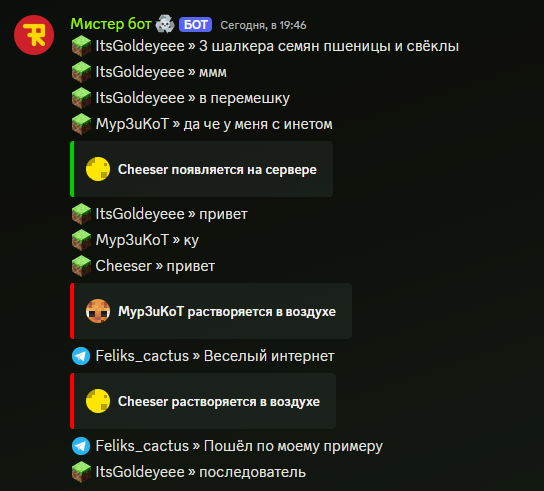
The MultiMessageBridge plugin allows you to connect Minecraft, Discord, Telegram, and other messengers (via add-ons) together!
Exchange messages, images, stickers between different platforms - it’s really wonderful!
Special Thanks
- Fairkor and MediocreSteam66 for sponsoring development and testing the plugin!
- Anea - Icon for the plugin on Modrinth
- hellbowe - help with developing version 0.5
Plugin Features
- Send messages simultaneously between Telegram, Discord, Minecraft, and other platforms using add-ons
- Send images between different platforms (displayed in-game as clickable text)
- Display stickers across platforms
- Reply to messages across platforms using native methods
- Display player join and leave messages on the server
- Display death messages
- Display received achievements
- Translate achievements and death messages into any language
- Flexible configuration
- Send server console output to Discord
- Support for threads in Telegram
Compatible Plugins
Plugins supported by MMB:
- EssentialsX Chat
- ChatEX
- SkinsRestorer
- PlaceholderAPI
Installation and Setup
Installing the Plugin
- Download the latest version of the plugin from Modrinth
- Place the downloaded file into your server's
pluginsfolder - Start the server. You will likely see 2 errors in the console; these indicate that Discord and Telegram bot tokens are not set
- Stop the server to make configuration changes
Plugin Configuration
Configuring config.yml
# Whether to store messages in a database for cross-platform message replies
enableMessageStorage: true # recommended true, default false
# Interval to update channel info in chat, in seconds
serverInfoUpdateTime: 603
# Default text displayed in the channel description
defaultServerInfoFormat: 'Online: {online} Total players: {total} Uptime: {uptime}'
# Format used to display server uptime in Discord channel description
timeFormat: '{d} days {h} hours {m} minutes' # placeholder {uptime} in defaultServerInfoFormat
# Whether to translate achievements and death messages from English
translateMessages: true
# Whether to repeat all player messages in the console
sendMessagesToConsole: true
# Platforms to be used. If [] is specified, all will be enabled
enabledReceivers:
  - Minecraft
  - Discord
  - Telegram
imageHosting:
  # Which image hosting to use; currently only freeimage is available
  type: freeimage
heads:
  # Configure display of player heads (e.g., in join/leave messages)
  # For SkinsRestorer https://mc-heads.net/avatar/%skinsrestorer_texture_id_or_steve%.png#%username%
  url: https://crafthead.net/helm/%nickname%
  provider: default
# Whether to include your server in metrics
metrics: true
Discord Bot Setup
For detailed information, see wiki
-
Create a bot and get its token, make sure to enable message intent
-
Configure
Discord.ymlbot: # Enter your bot token here token: 'paste token here' # Enter your server's Guild ID guild: 1234567890123456789 channels: messages: type: main_text id: 1234567890123456789 # ID of the player messages channel # Channel description, leave '' to use default description description: 'Online: {online} | Registered: {total} | Uptime: {uptime}' console: type: console id: 1234567890123456789 # ID of the console channel description: ' ' # Whether to require a prefix for commands in the console channel commandsShouldStartsWithPrefix: true commandPrefix: '!/' # Configuration for displayed messages, see wiki for details messages: # ... # Phrase filter for @everyone, @here mentions phraseFilter: filterMessages: true filters: '@everyone': '[everyone]' '@here': '[here]'
Telegram Bot Setup
For detailed information, see wiki
-
Go to BotFather and create a bot
-
Configure bot permissions if using a group
-
Add the bot to your group, or use private messages
-
Copy the token
-
Add your token to
Telegram.ymlbot: token: 'Your Bot Token' -
Start the server and wait for full load
-
Send a message to the bot (private or group) to get identifiers. You will see something like this in the console:
[00:19:57 INFO]: [MMB] Preconfigure debug enabled! Please, disable it in Telegram.yml after setting it up! [00:19:57 INFO]: [MMB] ChatId: 7109693268 ThreadId: 123 Message: ?? ???? [00:19:57 INFO]: [MMB] [Telegram] Azimkindev -> ?? ???? -
Configure
Telegram.ymlbot: token: 'Your Bot Token' mainChat: 7109693268 # ChatId from console message mainThread: -1 # Thread ID in group, leave -1 if no threads or using private chat #... messages: {} #... see wiki for message setup debug: # !!!!! Be sure to set this to false after configuring channel and thread IDs preConfiguredDebug: false
Final Steps
You are now ready to proudly launch your server. If errors occur, you can always contact tech support.
Support and Technical Help
You can get support on my Discord server
You can also report bugs on Github Issues
请登录后举报
请 登录 后赞助作者。
暂无评论,抢个沙发吧~