
Chimage
作者:rebot | 分类:模组
价格:0 墨喵币
下载量:0
点赞:0
版本 1.3.1-forge-1.20.1
本资源为搬运资源,原资源地址:
https://modrinth.com/mod/chimage
资源信息
Minecraft 版本: 1.20.1
平台: forge
标签: social utility


资源介绍
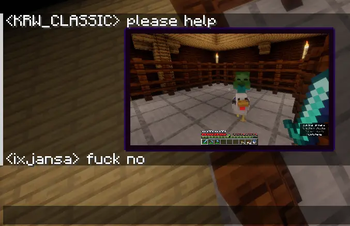
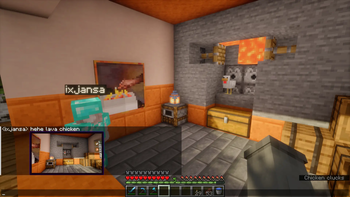
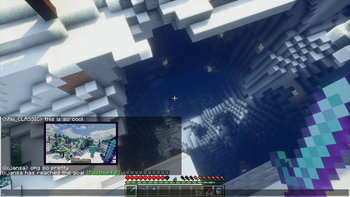
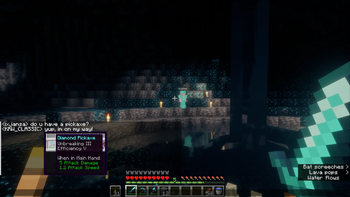
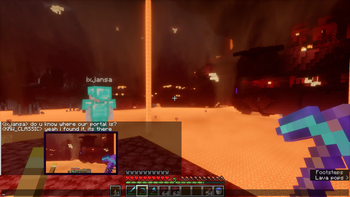
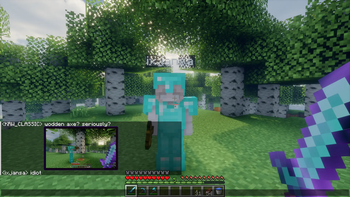
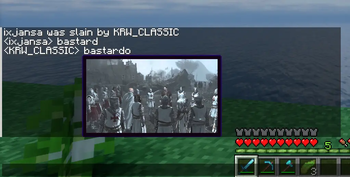
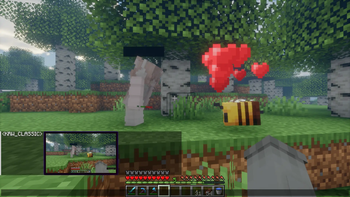
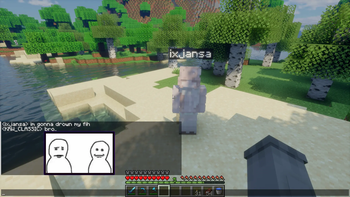
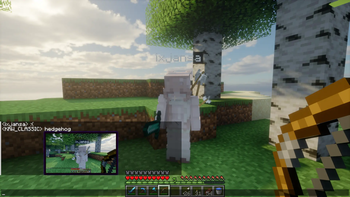
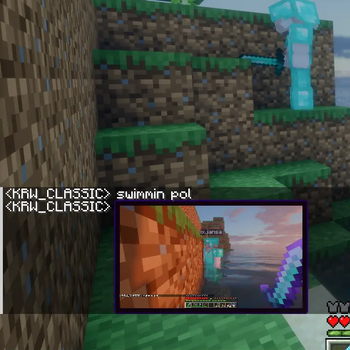
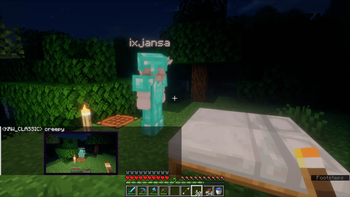
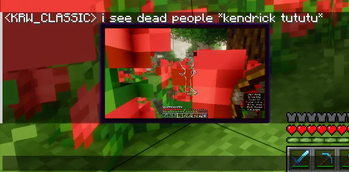
Chimage is a Minecraft mod that lets you paste, preview, and share images directly in the in-game chat.
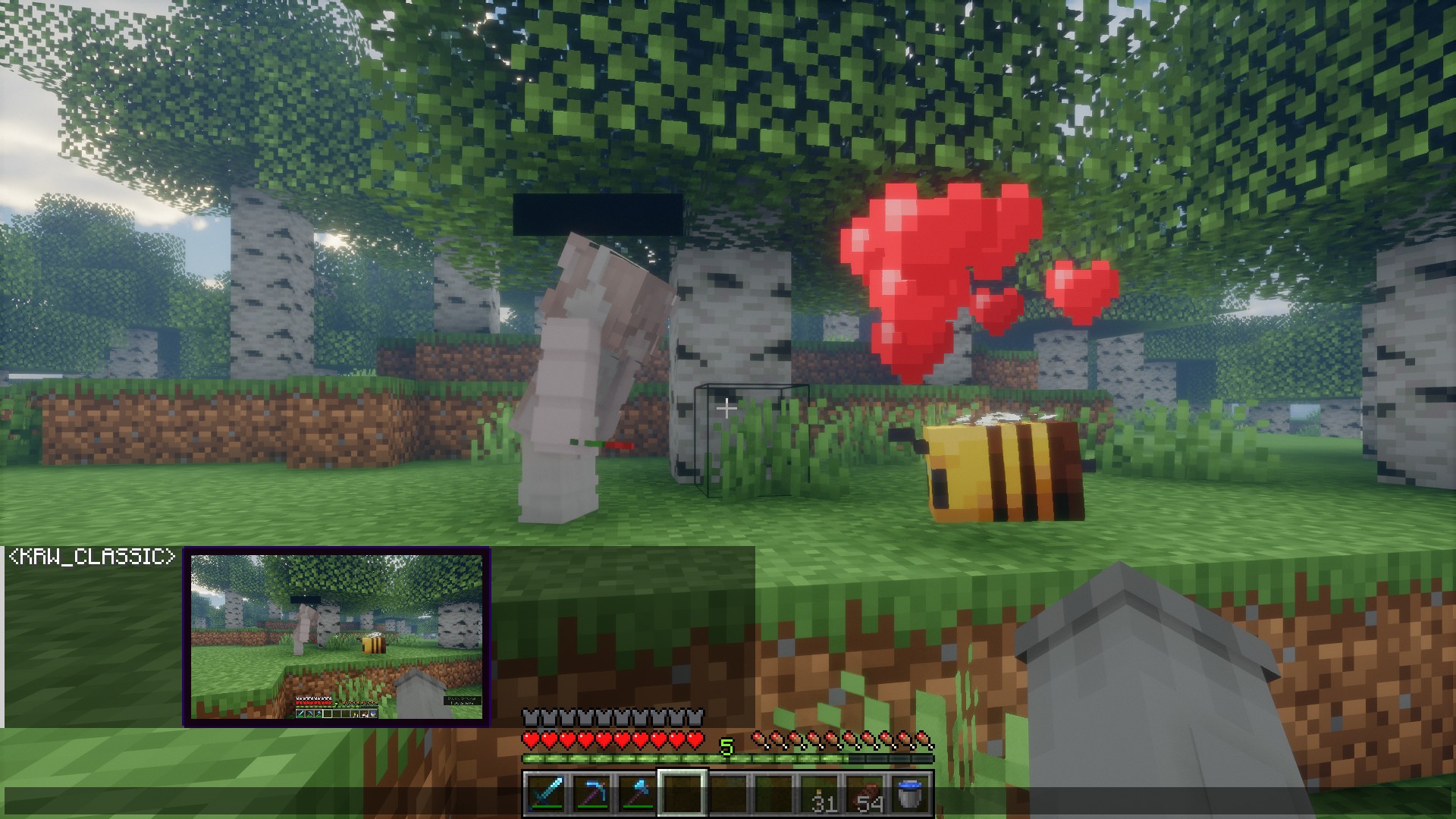
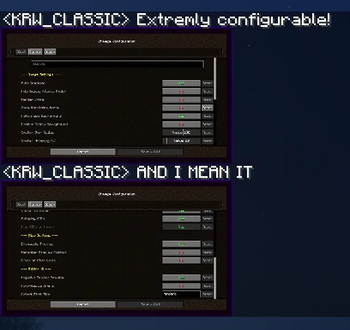
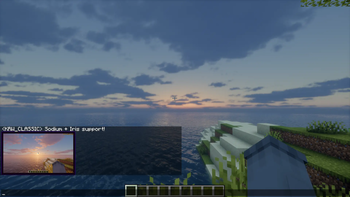
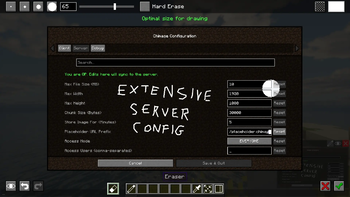
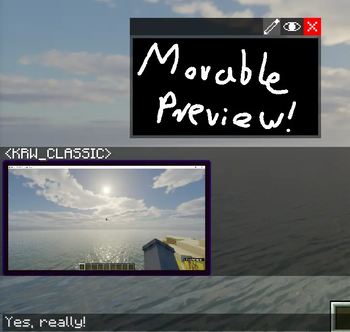
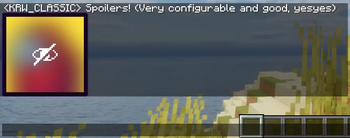
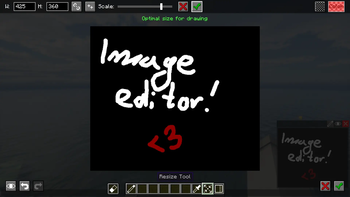
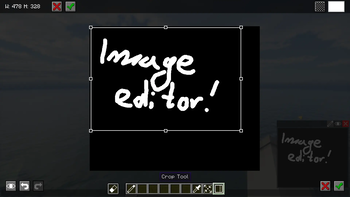
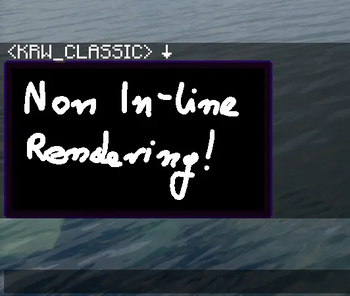
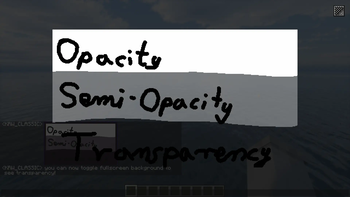
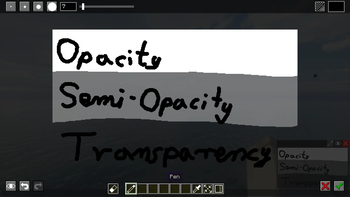
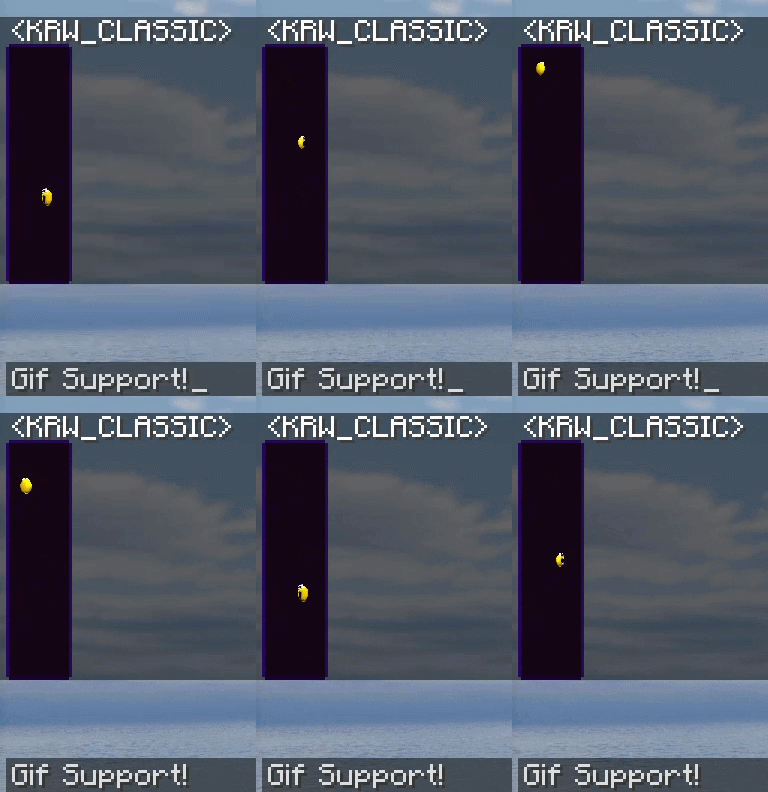
How to use Using Chimage is straightforward. There are three ways to attach an image to your chat message: 1. **Clipboard**: Simply press `CTRL + V` while the chat bar is open. (With image or image file in clipboard) 2. **Drag & Drop**: Drag an image file from your computer directly into the Minecraft window while the chat is open. 3. **URL Loading**: Type `!(your_url)` in the chat, or simply type `!` and press `CTRL + V` with an image link. Chimage will automatically fetch it directly from the web! Once you've attached an image, a small preview window will appear above your chat bar. This lets you confirm the image before sending it. Features List - **Clipboard Paste**: Press `CTRL + V` while the chat is open to send images from your clipboard. - **Drag & Drop**: Drag image files from your computer directly into the game window while the chat is open. - **URL Loading**: Fetch images, GIFs, and gallery links (like Imgur, Tenor, and Klipy) instantly by pasting links or typing `!(url)`. - **Attachment Drawer**: Open the attachment drawer at any time to pick images from your computer, attach F2 screenshots, or start a blank canvas. - **Real-Time Preview**: See a preview window of your image to confirm before sending, with an animated border indicator during upload cooldowns. - **In-Chat Rendering**: View images sent by other players directly within the chat box. - **Fullscreen Viewer**: Click any image in chat to view it in fullscreen with zoom support. - **Remix Button**: Click the Remix button on an image sent by another player to open it in the editor, modify it, and send back your own version. - **Private Message Support**: Share images directly in private messages (`/msg`, `/tell`, etc.) with configurable command support. - **Image Metadata**: Hold `SHIFT` while hovering over an image to see its details. - **Quick Download**: Use `SHIFT + Left Click` on an image to save it to your computer. - **Quick Copy**: Use `CTRL + Left Click` on an image to copy it straight to your clipboard. - **Spoilers**: Mark images as spoilers to keep them blurred in chat until hovered or clicked. - **Vanilla Compatibility**: Vanilla clients can view images via clickable fallback links (if enabled by the server). - **Client-Side Downscaling**: Enforce a resolution limit to automatically downscale large incoming images, reducing memory usage and improving performance. - **Highly Configurable**: Adjust maximum image sizes, rendering limits, behaviours, and more. - **Built-in Image Editor**: Draw, erase, pick colors, crop, and resize images before sending them. - **Immersive Paintings Integration**: Export your edited images directly into the world as custom paintings or graffiti! Image Editor Chimage features a robust built-in Image Editor, allowing you to quickly modify images right before sending them in chat. **Features include:** - **Pen & Eraser**: Draw or erase directly on the image with customizable brush sizes. - **Color Picker**: A fully-featured RGB/HSL/HSV & Alpha color picker to select the exact color you need. - **Resize**: Scale the image up or down, optionally locking the aspect ratio. - **Crop**: Quickly crop out the important parts of the image. - **Undo / Redo**: Made a mistake? Use `Ctrl+Z` and `Ctrl+Y` to undo or redo your actions. View Editor Screenshots *(Screenshots coming soon)* Immersive Paintings Integration If you have the **[Immersive Paintings](https://modrinth.com/mod/immersive-paintings)** mod installed alongside Chimage, a new export button will appear inside the Image Editor! This feature allows you to take any image or any drawing you've made inside the editor and instantly convert it into a custom painting or graffiti item. You can then place it anywhere in your Minecraft world! Commands - `/chimage config` - Manage your Client and Server configurations directly from chat. - `/chimage server` - Commands to manage the Built-in HTTP Server (`status`, `start`, `stop`, `getActiveFiles`, `getLatestLog`, etc). - `/chimage access` - Manage the Access List (`mode`, `add`, `remove`, `list`) to control exactly who is allowed to send images. - `/chimage debug` - Trigger test downloads or enable developer overlay options (`viewBoundingBoxes`, `verbose`). - `/chimage version` - Check the mod version, game version, and loader type. Server Compatibility **Vanilla Servers** The mod is disabled on vanilla servers. In order to upload and share images, **the server must also have the mod installed**. **Vanilla Clients (Link-based fallback)** If a player connects without the mod installed, they can still "see" the images via link-based fallbacks! The server converts uploaded images into clickable web links for vanilla clients to open in their browser. *(Note: Server owners must configure this feature themselves).* Server & Web Viewer Setup Chimage includes a built-in HTTP server that allows vanilla clients or out-of-game users to view uploaded images directly in a browser with a sleek UI! ### 1. Extract Web Files Find the `ImageHost.zip` provided alongside the mod JAR under Supplementary resources. Extract this zip directly into the root folder of your Minecraft server (the same folder that contains your `mods` folder, `server.properties`, etc.). It must create a folder exactly named `ImageHost`. *Example path:* `/path/to/server/ImageHost/index.html` ### 2. Configure Settings Open your `config/chimage-server.json` file (or simply use the in-game Mod Menu -> Chimage -> **Hosting** tab) and adjust the following settings: - `"enableClickableLinks": true` - Allows the mod to send web links in chat instead of falling back to raw data if a player doesn't have the mod. - `"clickableLinkUrlPlaceholder": "http://images.yoursite.com/"` - The base URL given to players. Make sure to include the trailing slash! If you do not have a domain or reverse proxy, you can also use your IP and port like `"http://1.2.3.4:8080/"`. - `"enableBuiltInHostServer": true` - Turns on the built-in HTTP server. - `"builtInHostServerPort": 8080` - The port the server will run on (change this if 8080 is already used). ### 3. Optional: Nginx Reverse Proxy If you want to use a domain name (like `images.yoursite.com`) without exposing the port, you can use Nginx to reverse-proxy traffic to Chimage. ```nginx server { listen 80; server_name images.yoursite.com; location / { proxy_pass http://localhost:8080; proxy_set_header Host $host; proxy_set_header X-Real-IP $remote_addr; } } ``` You can easily secure this with HTTPS by installing Certbot and running `certbot --nginx -d images.yoursite.com`! *(If you do this, remember to change your `clickableLinkUrlPlaceholder` to `"https://images.yoursite.com/"`)* ### 4. Testing the Server You can check if the internal HTTP server is running and manage it directly in-game using the following commands: - `/chimage server status` - Check if the HTTP server is running and see its current uptime. - `/chimage server start` or `stop` - Manually turn the built-in HTTP server on or off. - `/chimage server getActiveFiles` - Check how many uploaded images are currently stored and being served. - `/chimage server getLatestLog` - View the most recent HTTP server access logs right in your chat. - `/chimage server getWebsitePath` - Verify the directory from which the server is serving your HTML files. Bleeding Edge Builds You can download the newest, bleeding-edge versions of the mod directly from the official website: **[https://chimage.krwclassic.com/](https://chimage.krwclassic.com/)** *(Warning: These versions are in active development and might be unstable!)* Planned Features (TODO) 1.3.1 - Aspect ratio buttons (crop, expand, and resize when unlinked ratio instead of a size slider) - Text tool expandable top toolbar with e.g. text background option - More native textures in editor (swap top toolbar and color widget with dirt bar and stone button texture) 1.4.X - Add an option to configure mouse polling rate for drawing tools - Fix ~1.16.5 updating older messages based on some settings like vanilla mode - Gallery (saving images and gifs) - Editor use tutorial with toasts (how to move, shortcuts etc.) - "Update available" toast on world join if user is OP (Server to all operators on chat too) - Multiple images support??? 1.3.X | arrows to cycle thru attached images (auto cycle thru img config) - Allow Image Editor for gifs with drawing tool excluded - Layers - Video support (1.3.X/1.4.X) - Download progress bar - Range version support (1.16.x instead of 1.16.5) Unknown - Make Renderium (and switch from rendering with spam of preprocessor blocks) - Finish writing BaLLib and switch from using Cloth Config (because of feature parity across cloth versions) - Discord Chat addon (messages and images between discord and mc chat) View Editor Screenshots *(Screenshots coming soon)* Immersive Paintings Integration If you have the **[Immersive Paintings](https://modrinth.com/mod/immersive-paintings)** mod installed alongside Chimage, a new export button will appear inside the Image Editor! This feature allows you to take any image or any drawing you've made inside the editor and instantly convert it into a custom painting or graffiti item. You can then place it anywhere in your Minecraft world! Commands - `/chimage config` - Manage your Client and Server configurations directly from chat. - `/chimage server` - Commands to manage the Built-in HTTP Server (`status`, `start`, `stop`, `getActiveFiles`, `getLatestLog`, etc). - `/chimage access` - Manage the Access List (`mode`, `add`, `remove`, `list`) to control exactly who is allowed to send images. - `/chimage debug` - Trigger test downloads or enable developer overlay options (`viewBoundingBoxes`, `verbose`). - `/chimage version` - Check the mod version, game version, and loader type. Server Compatibility **Vanilla Servers** The mod is disabled on vanilla servers. In order to upload and share images, **the server must also have the mod installed**. **Vanilla Clients (Link-based fallback)** If a player connects without the mod installed, they can still "see" the images via link-based fallbacks! The server converts uploaded images into clickable web links for vanilla clients to open in their browser. *(Note: Server owners must configure this feature themselves).* Server & Web Viewer Setup Chimage includes a built-in HTTP server that allows vanilla clients or out-of-game users to view uploaded images directly in a browser with a sleek UI! ### 1. Extract Web Files Find the `ImageHost.zip` provided alongside the mod JAR under Supplementary resources. Extract this zip directly into the root folder of your Minecraft server (the same folder that contains your `mods` folder, `server.properties`, etc.). It must create a folder exactly named `ImageHost`. *Example path:* `/path/to/server/ImageHost/index.html` ### 2. Configure Settings Open your `config/chimage-server.json` file (or simply use the in-game Mod Menu -> Chimage -> **Hosting** tab) and adjust the following settings: - `"enableClickableLinks": true` - Allows the mod to send web links in chat instead of falling back to raw data if a player doesn't have the mod. - `"clickableLinkUrlPlaceholder": "http://images.yoursite.com/"` - The base URL given to players. Make sure to include the trailing slash! If you do not have a domain or reverse proxy, you can also use your IP and port like `"http://1.2.3.4:8080/"`. - `"enableBuiltInHostServer": true` - Turns on the built-in HTTP server. - `"builtInHostServerPort": 8080` - The port the server will run on (change this if 8080 is already used). ### 3. Optional: Nginx Reverse Proxy If you want to use a domain name (like `images.yoursite.com`) without exposing the port, you can use Nginx to reverse-proxy traffic to Chimage. ```nginx server { listen 80; server_name images.yoursite.com; location / { proxy_pass http://localhost:8080; proxy_set_header Host $host; proxy_set_header X-Real-IP $remote_addr; } } ``` You can easily secure this with HTTPS by installing Certbot and running `certbot --nginx -d images.yoursite.com`! *(If you do this, remember to change your `clickableLinkUrlPlaceholder` to `"https://images.yoursite.com/"`)* ### 4. Testing the Server You can check if the internal HTTP server is running and manage it directly in-game using the following commands: - `/chimage server status` - Check if the HTTP server is running and see its current uptime. - `/chimage server start` or `stop` - Manually turn the built-in HTTP server on or off. - `/chimage server getActiveFiles` - Check how many uploaded images are currently stored and being served. - `/chimage server getLatestLog` - View the most recent HTTP server access logs right in your chat. - `/chimage server getWebsitePath` - Verify the directory from which the server is serving your HTML files. Bleeding Edge Builds You can download the newest, bleeding-edge versions of the mod directly from the official website: **[https://chimage.krwclassic.com/](https://chimage.krwclassic.com/)** *(Warning: These versions are in active development and might be unstable!)* Planned Features (TODO) 1.3.1 - Aspect ratio buttons (crop, expand, and resize when unlinked ratio instead of a size slider) - Text tool expandable top toolbar with e.g. text background option - More native textures in editor (swap top toolbar and color widget with dirt bar and stone button texture) 1.4.X - Add an option to configure mouse polling rate for drawing tools - Fix ~1.16.5 updating older messages based on some settings like vanilla mode - Gallery (saving images and gifs) - Editor use tutorial with toasts (how to move, shortcuts etc.) - "Update available" toast on world join if user is OP (Server to all operators on chat too) - Multiple images support??? 1.3.X | arrows to cycle thru attached images (auto cycle thru img config) - Allow Image Editor for gifs with drawing tool excluded - Layers - Video support (1.3.X/1.4.X) - Download progress bar - Range version support (1.16.x instead of 1.16.5) Unknown - Make Renderium (and switch from rendering with spam of preprocessor blocks) - Finish writing BaLLib and switch from using Cloth Config (because of feature parity across cloth versions) - Discord Chat addon (messages and images between discord and mc chat)Aiming to support both Fabric and Forge on every Minecraft version from 1.16.5 onwards.
下载与版本
评论(0)
请 登录 后发表评论。
举报此资源
请登录后举报
赞助作者
请 登录 后赞助作者。
暂无评论,抢个沙发吧~