
Slide Show Pro
作者:rebot | 分类:模组
Minecraft 版本: 1.21.6 1.21.7 1.21.8
平台: neoforge
标签: decoration
Based on Slideshow(Fabric)
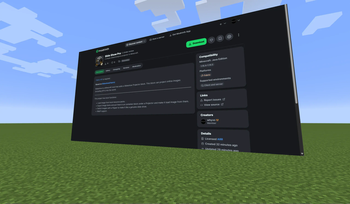
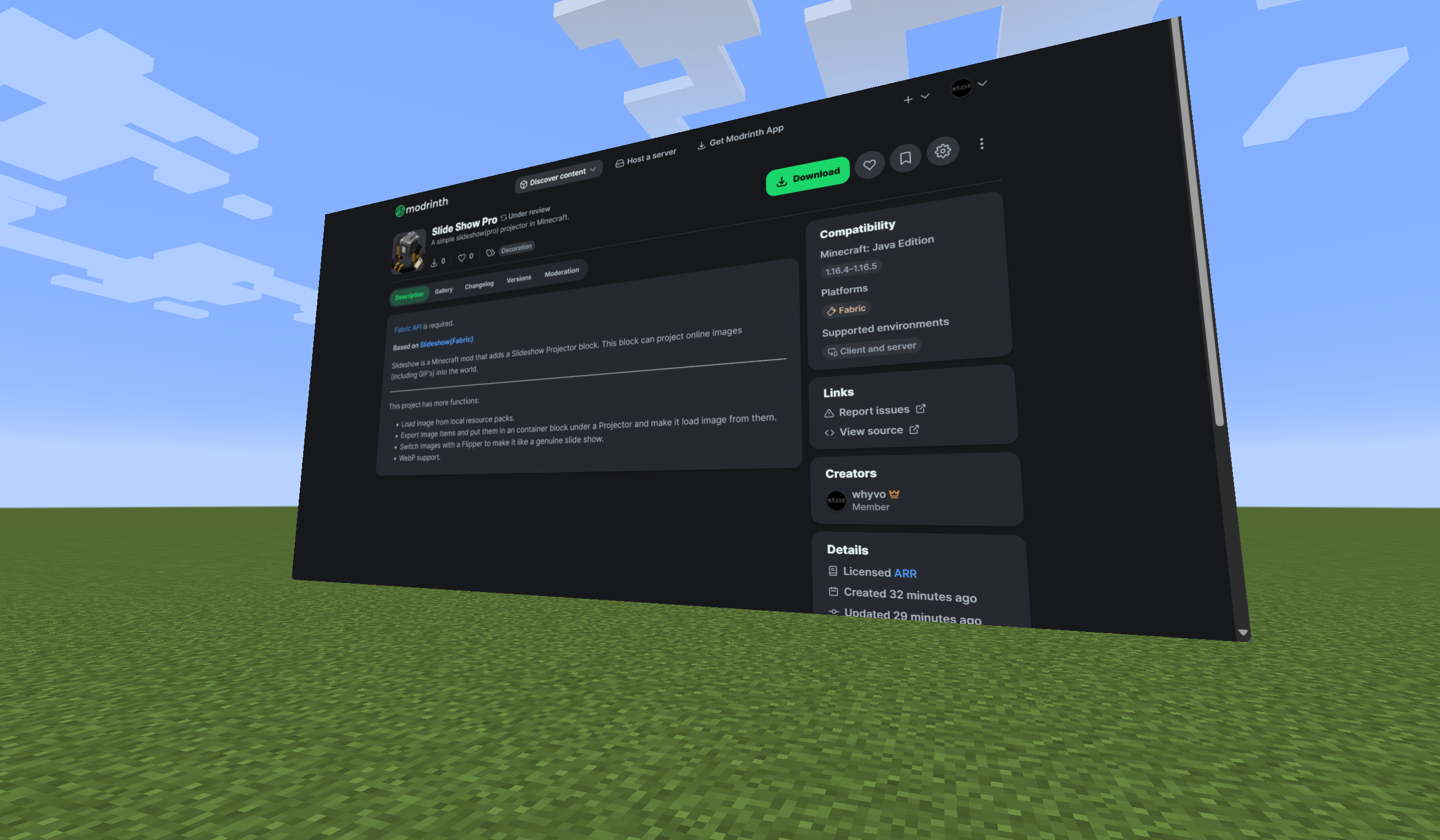
Slideshow is a Minecraft mod that adds a Slideshow Projector block. This block can project online images (including GIF's) into the world.
This project has more functions:
- Load image from local resource packs.
- Export Image Items and put them in an container block under a Projector and make it load image from them.
- Switch images with a Flipper to make it like a genuine slide show.
- WebP support.
How to use a Projector?
- In Creative Inventory, Projector and Flipper items are located in “Tools” or “Tools and Utilities” tab.
- Only Creative mode players with permission level of 2 can use a Projector.
- Notice that a Projector has 6 orientations.
-
Place a Projector.
-
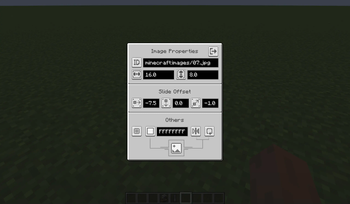
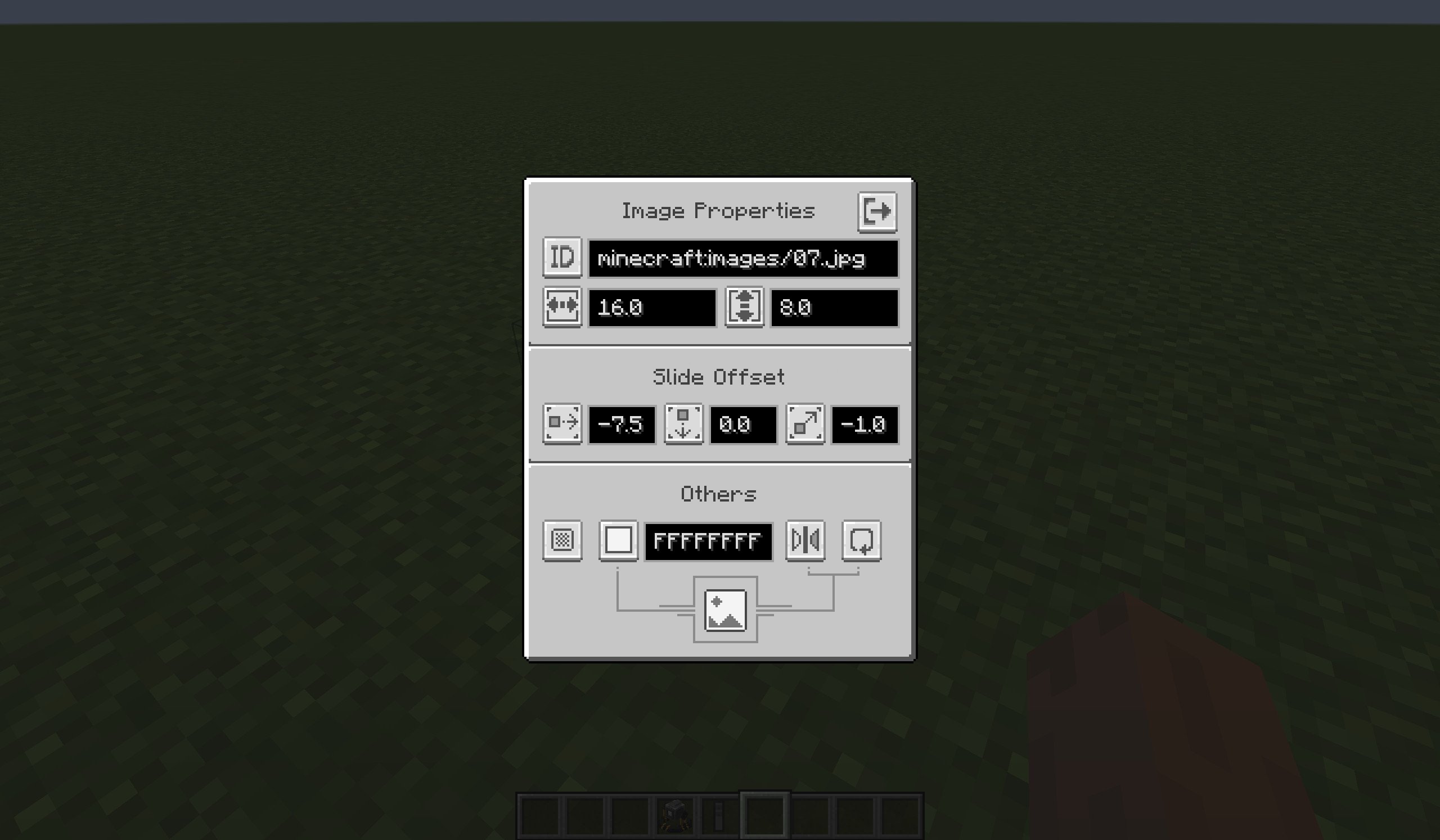
Right-click this Projector then you can configure the Image Properties in the Projector Screen. New properties will only be applied when you close the Projector Screen.
-
Use upper-left button to switch modes of the Projector, then enter the attribute in the input field on the right (see the table below):
-
The descriptions of each mode are as follows:
Mode Description Enter in the input field URL Fetch ONE online image from the Internet and render it. The URL of the Image. ID Fetch ONE local image from the game resoureces and render it.
Other players can not see this image if they had no this image in their game resources.The ID of the Image.
(e.g.minecraft:images/01.png)Container Block Read Image items in the specified Container and render them.
See more infomation at below.The position of the Container Block.
Default is the block under it.
Use ^ to indicate relative position.
(e.g.1 5 13)
(e.g.^ ^1 ^1)
How to use Container Block mode?
-
Get Image Item through:
-
the Export button in Projector Screen (in URL or ID mode).
-
/imagecommand (requires permission level of 2).
-
-
Put Image Items in a container block (like Chest).
-
Switch to Container Block mode in Projector Screen, and enter the position of the container block.
-
Close the Projector Screen, the Projector render the first image in the container block.
-
Get a Flipper Item (requires survival or creative mode), use it on the Projector to bind them. Then you can operatethe Projector using this Flipper Item:
- Left click(Attack, Break Key): switch to the previous image.
- Right click(Use, Interact Key): switch to the next image.
- Shift + Right click(Sneak + Use, Interact Key): switch to the first image.
-
If you have permission level of 2, you can also use command
/projectorto flip a projector.
Multi-screen
A projector can hava multi screens to show same images, while their positions, angles and sizes are different.
Note: This new feature in 1.1.0 make it a little incompatible with older versions.
Configs
Client-side
Path: <minecraft_root>/config/slideshow.json.
You can specify:
- proxy to get image from Internet.
- image's view distance.
Client-side config is loaded when the client started or it reloaded resources.
Server-side
Path: <minecraft_root>/saves/<your_save>/config/slideshow.json.
(If dedicated server: <server_root>/world/config/slideshow.json)
You can specify: permisson levels of some behavior or the commands.
Server-side config is loaded when the server started(world loaded) or it reloaded resources.
请登录后举报
暂无评论,抢个沙发吧~